 YunLab.ai
 Claude Code · Getting Started
I stumbled onto something: a session had synced between my MacBook Pro and my Mac Studio.
My first reaction was that this was handy — and then I got stuck on a question: if I keep typing on the Studio, is the work running on the MacBook, or did it move to the Studio? I had it wrong. Took some digging, and the official docs, to straighten out. So here it is — what the feature is, how to use it, and how to use it well.
First, nail the one thing that trips everyone up
What syncs across devices is the session list, not the execution environment. Your three machines are signed into the same claude.ai account, and the session list lives in your account's cloud, so any of them can see the same session in the list. But where the work runs is locked in the moment that session is created — it doesn't migrate just because you open it on a different machine.
The docs put it plainly: "The web and mobile interfaces are just a window into that local session." The machine you open it on is only ever a screen. The "hands" doing the work are either on the machine that started it, or in the cloud — fixed at creation. You switch screens, not hands.
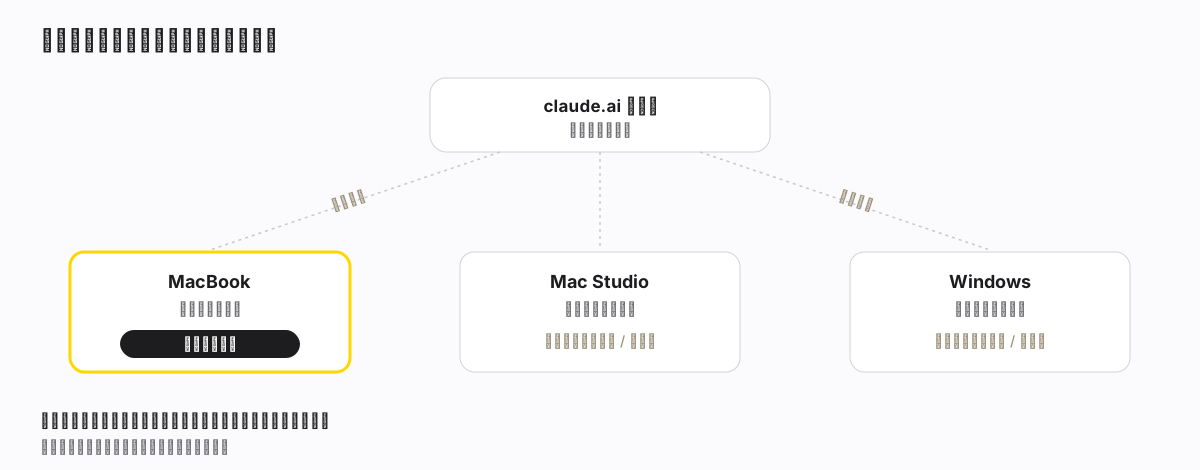
So the thing I'd worried about — "if I keep typing on the Studio, will it mess with the Studio?" — no. My session was started on the laptop; however I type on the Studio or my phone, it always edits the laptop's files.
The feature is called Remote Control
It's Remote Control, still a research preview, available on all plans (Pro / Max / Team / Enterprise), but it only accepts claude.ai account login — API keys don't work. It needs Claude Code 2.1.51 or later — it lit up only after I upgraded, which is why it "wasn't there before." Check with claude --version.
Two things that get conflated — pull them apart
"Claude Code not running in front of me" is actually two different setups, and you have to keep them straight, because where the work runs is completely different:
| Remote Control | Claude Code on the web | |
|---|---|---|
| Where it runs | Your own machine (the one that started it) | Anthropic cloud |
| Touches local files? | Yes — your files, MCP, project config all there | No — works in a cloud sandbox against a GitHub repo |
| Still running if all machines off? | No — the host machine must stay awake and online | Yes — the cloud keeps running it |
| Best for | Local work you want to keep going from another screen | Kicking off with zero local setup, a repo you haven't cloned, many in parallel |
In one line: Remote Control is "runs on your machine, you drive it remotely"; the web is "runs in the cloud, nothing to do with your machine." My .git fix had to touch the laptop's local files, so it could only be Remote Control — hands on the laptop.
How to start it, how to connect
Starting a Remote Control session (from the CLI or VS Code — the desktop app can only "connect," not "start"):
claude remote-control— server mode, sits in the terminal waiting for connections, gives you a session URL, press space for a QR code. Can host multiple sessions at once (default cap 32).claude --remote-control(or--rc) — a normal interactive session with remote on, so you can keep typing locally too.- Already in a session? Type
/remote-control(or/rc) — turns the current conversation into a remote-able one, history carried over. - VS Code extension: type
/remote-controlin the prompt box (needs 2.1.79+). - Want every session to auto-enable remote: in
/configset "Enable Remote Control for all sessions" to true; in the Desktop app, Settings → Claude Code → Enable remote control by default.
Connecting from another device:
- Open the session URL in any browser (lands on claude.ai/code);
- or scan the QR code (lands in the Claude mobile app);
- or just open claude.ai/code / the mobile app and find it by name in the list — a Remote Control session shows a computer icon with a green dot when online. Green dot = that machine is online and the work can continue.
Two prerequisites: log in with /login using a claude.ai account (not an API key), and keep the host machine awake and online.
How to use it well (this is where it actually pays off)
- Start at the desk, watch from the couch. Send a long task off at the computer, then move to the couch, pull out your phone, keep watching the output and steering. Terminal, browser, phone — three windows, the conversation stays in sync, send from whichever you like.
- Have it ping you when it's done. With Remote Control on, Claude can push notifications to your phone — when a long task finishes, or when it's stuck and needs your call, it pushes one. You can also just write "notify me when the tests finish" in your prompt. (Needs 2.1.110+)
- Don't kill the process, don't let it stay offline too long — this is the soft spot. The
claudeprocess on the host machine has to stay alive: close the terminal or quit VS Code and the session ends. A brief sleep or a dropped network is fine — it reconnects automatically when the machine comes back; but awake-yet-unreachable for more than ~10 minutes times out and exits. So don't close the terminal, don't let it fully sleep. - Match the tool to the task. Work that needs a machine's local files / MCP / config → Remote Control (runs on your machine). Work that needs no local setup, a repo you haven't cloned, or several in parallel → Claude Code on the web (runs in the cloud, keeps going with your machines off). You can also use
--teleport/--remoteto move a session between cloud and terminal. - For many at once, use server mode.
claude remote-controlhosts up to 32 sessions by default; add--spawn worktreeto give each its own git worktree so they don't step on each other.
I'd taken "I can see it" to mean "it came over," and spun on that for a while. It's really one line: what syncs is the list, not the hands.
The screen you open it on only decides where you watch from; where it runs was set the moment the session was created — either the machine that started it, or the cloud, nothing to do with which machine you're sitting at now. Three machines, one session, one set of hands — once you've got that straight, it's good to use.
The setup I like best now: send a long job off from the laptop, go do something else, watch it on my phone, and it pings me when it's done.