 YunLab.ai
 CHAPTER 01 · 1.16
Settings: What You Must Understand First
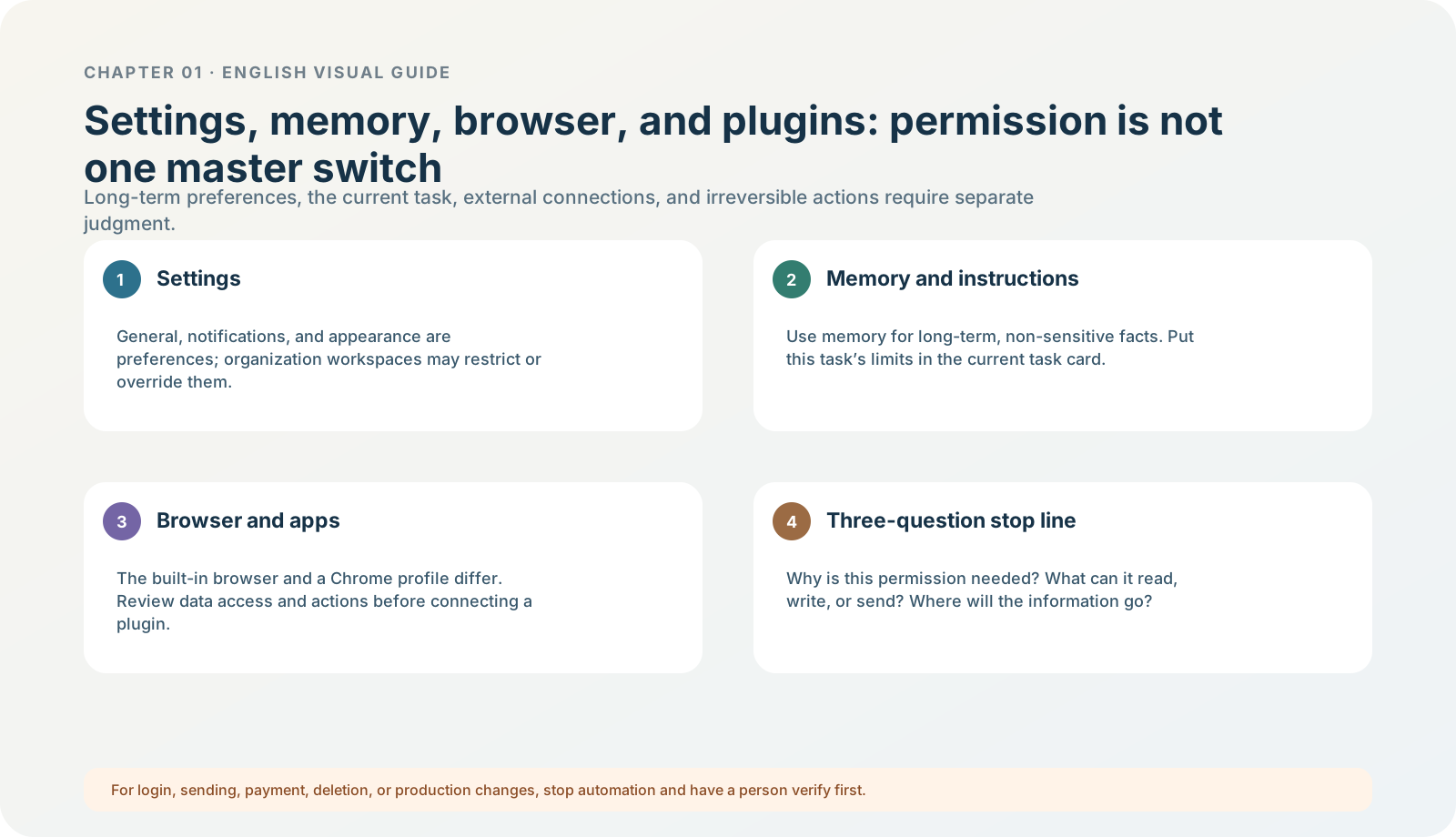
Figure 1-16 · DIA-01-V2-07. Boundaries among settings, memory, and external connections (teaching diagram, not a live-product screenshot).
This section answers: Which settings are worth understanding on the first visit, and which should you not rush to change?
Separate “long-term preferences” from “this task”
The current desktop settings include categories such as General, Profile, Keyboard Shortcuts, Notifications, Appearance, Pets, Browser, Computer Use, Personalization, Suggested prompts, Memories, and Archived chats; the items you can actually see can still depend on plan, workspace, and rollout. They are appropriate for stable preferences, while the goal, material boundary, prohibitions, and acceptance for this task must be written in the current task card. Having allowed a capability once in Settings does not mean every task may cross its boundary by default.
The priority order for your first look at Settings
| Priority | Understand first | Why |
|---|---|---|
| 1 | Profile, General, and Keyboard Shortcuts. | Confirm identity overview, app behavior, and current shortcuts without expanding data scope. |
| 2 | Permissions under General. | At first use, understand Ask for approval by default; enabling a mode does not select it for the current task. |
| 3 | Browser and Computer Use. | They may touch websites, sign-in state, screen, or app control, so read the explanation first. |
| 4 | Personalization and Memories. | They affect long-term interactions, so understand them before saving anything. |
| 5 | Notifications, Appearance, Pets, Suggested prompts, and Archived chats. | They manage experience and retrieval; they do not replace a task boundary. |
Current official information: you can open Settings from the app menu, or with Cmd+, on macOS. General can adjust local-run behavior and permission modes; Browser and Computer Use have independent settings; Personalization manages personalization and instructions; Memories has independent switches and chat-level controls. ChatGPT desktop app settings Data use and organization policies must still follow the description of your current account / workspace; do not guess switch meanings from another person’s screenshot.
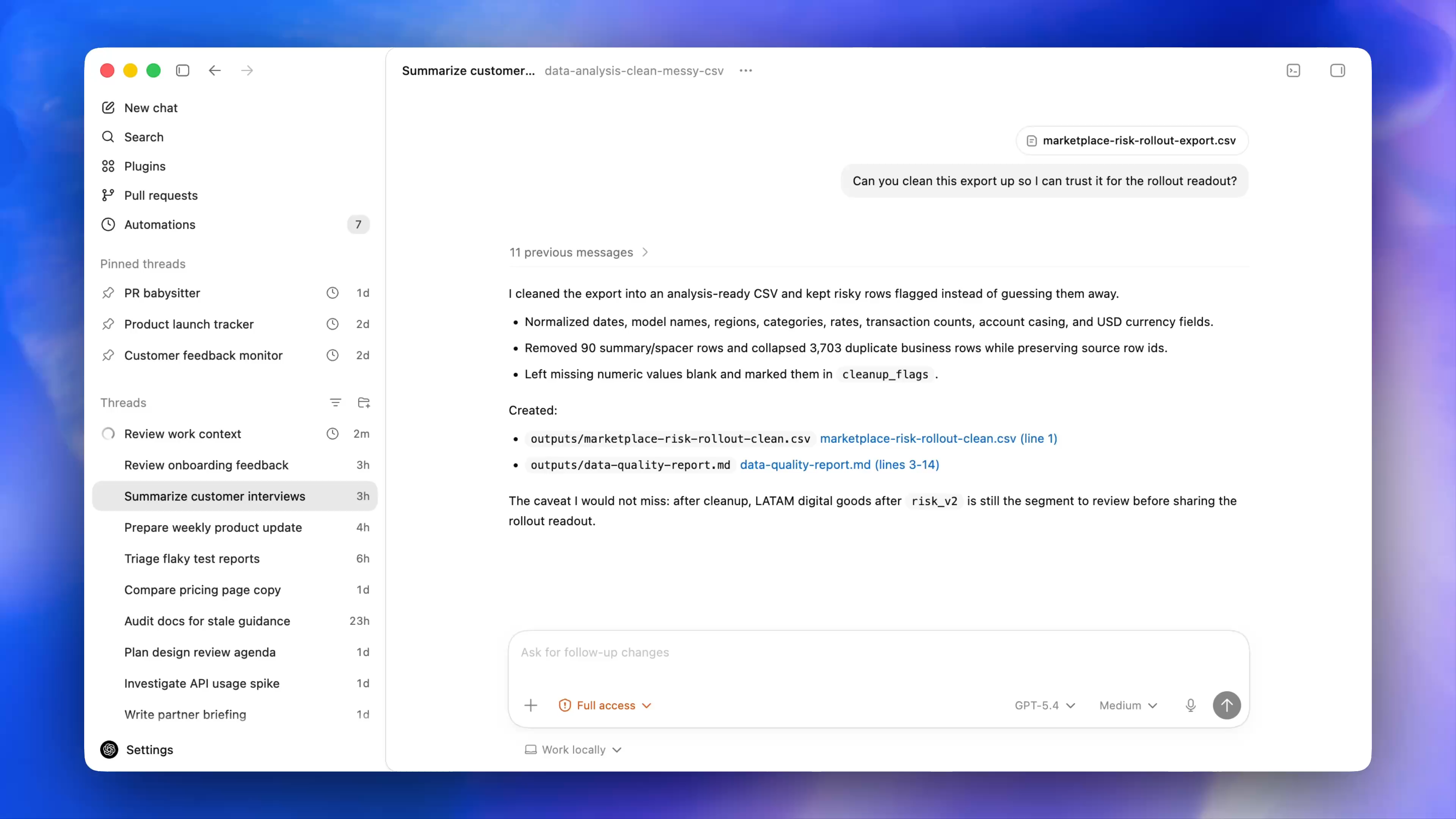
Figure 1-16A · CUR-01-06-01. The current official desktop demonstration shows Settings at the bottom of the sidebar (verified 2026-07-30; source page). This only locates the new entry point; the concrete setting categories, organization restrictions, and switches depend on your app.
Follow along: inspect without modifying
After opening Settings, do only four things: find the permissions explanation under General, Personalization / Memories, Browser / Computer Use, and Notifications; read the explanations; record whether the workspace is organization-managed; close Settings. Unless you can state the purpose of a change and how to roll it back, this chapter does not require altering any global switch.
Minimum exercise and acceptance
Write one example suitable for a global setting and one example that must be written in a task card.
Reference answer: global setting: notification preference; task card: this task may read only two files and must not use the web. Common pitfall: changing global memory, permissions, or data controls to complete a one-off task. Next: what memory, personalization, and custom instructions should each retain.