 YunLab.ai
 CHAPTER 01 · 1.4
Sign-up, sign-in, and identity verification
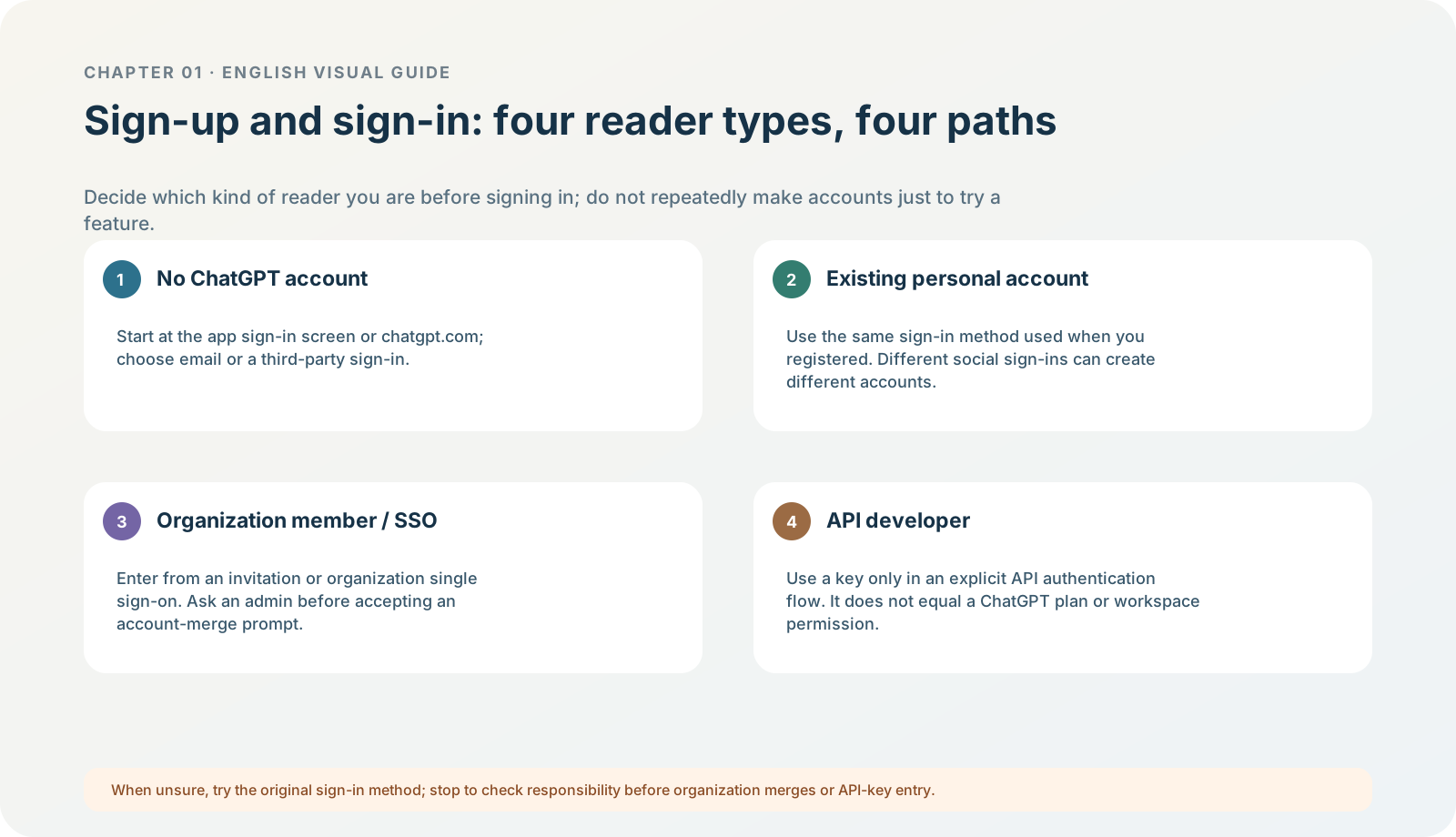
Figure 1-4 · DIA-01-V2-09. Four sign-up/sign-in paths for people without an account, personal-account users, organization-account users, and API developers (teaching diagram, not a live-product screenshot).
This is not an abstract classification chart: four kinds of reader, four paths. Each has different completion conditions and different points at which you must stop to confirm.
This section answers: What is the relationship among ChatGPT sign-in, an organization workspace, and an API key?
Three identity layers must remain separate
| Identity layer | What it solves | The most common beginner misunderstanding |
|---|---|---|
| ChatGPT account | Signs into the desktop app and uses Codex available through a ChatGPT plan. | Treating an API key as evidence that desktop identity has been confirmed. |
| Personal / organization workspace | Determines some models, plugins, data controls, and policies. | Assuming personal preferences always override organization restrictions. |
| API platform account | The developer system for keys, projects, usage, and billing. | Assuming that buying ChatGPT means you can call the API freely. |
Current official information: local work in the current desktop app supports two sign-in methods: use a ChatGPT account for subscription/workspace access, or use an API key for usage-based API-organization access. They correspond to different workspace controls, retention, and data-handling policies; organization membership, seats, and roles can further limit the product surfaces and features you can see. Authentication
An API key is not something that can never be used to authenticate: in a separately configured developer API workflow, it can be the authentication credential for an API project. But it cannot prove which ChatGPT account signed into the desktop app, and it does not mean that a ChatGPT subscription, workspace permissions, or API billing are aligned. When learning for the first time, never paste a key into chat, a screenshot, a note, or any input that is not explicitly for API authentication. Only after you have deliberately chosen the API-developer path and confirmed the organization, billing, and data boundaries should you configure it separately through the application’s or platform’s formal authentication flow.
Choose your path first; do not guess while signing in
Choose only one of the four paths below. Their shared principle is: prove “who I am” before entering the desktop app. Do not repeatedly create accounts, change sign-in providers, or buy services merely to try Codex.
| Your current situation | Where to begin | The correct completion action | What you must stop to confirm |
|---|---|---|---|
| You do not yet have a ChatGPT account | Choose sign-up at the current desktop app’s sign-in entry, or at the ChatGPT sign-in page. | Choose email/password or one of Continue with Google, Microsoft, or Apple from the visible options; after completing the required email or identity-provider verification, return to the desktop app and sign in using the same method. | Do not give a verification code, recovery code, or password to chat. If you see “account already exists”, switch to sign-in rather than registering another account. |
| You already have a personal ChatGPT account | Sign in from the desktop app using the method with which you originally registered. | Google, Microsoft, Apple, and email/password are different identity providers; use the original method first, then confirm the personal workspace. | Do not switch to another social sign-in just because a button looks different; it may create another account, subscription, or chat history. |
| You have an organization invitation, enterprise/school account, or SSO | Begin with the organization invitation email, company identity portal, or the SSO link specified by IT. | Have the administrator confirm that the invitation was sent to the right email and that you have been provisioned; after signing in, confirm that the current workspace is the organization workspace. | Stop first if you see “merge personal workspace”. A merge may move personal chats, files, and control into the organization and may be irreversible. |
| You already have an API developer organization | Begin only if you really administer that API organization and have deliberately chosen local API authentication. | Use the key through the application’s or platform’s formal API-authentication process, and separately check the API organization, billing, and data policy. | An API key is not a prerequisite for completing this chapter. If unsure, do not enter one—and do not create a key or add credit especially for this chapter. |
Minimum-path example (no account): open the official sign-in page → choose one registration method → complete verification → close or return from the browser → return to the desktop app → sign in using the same method → confirm only the personal/organization space; do not enter payment, plugins, or folder authorization. Current official guidance also notes that different sign-in methods may create different accounts. If a verification email does not arrive, first return to the sign-in page and use the original method to trigger activation; check spam/quarantined mail before trying again, rather than bypassing it with a new account. Sign-in and verification troubleshooting
What you will see
Sign-in may redirect to a browser and require verification, organizational single sign-on, or multi-factor authentication. That is an identity flow, not an “extra Codex setting”. Email/password, Google, Microsoft, and Apple are personal identity providers; organization SSO has the organization’s identity provider confirm your identity, provided an administrator has invited or enabled you. After verification, return to the desktop app and confirm that the displayed account and workspace are the expected ones.
Follow along: complete one sign-in confirmation safely
- Choose your own path in the table first. If you already have an account, write “I originally used ______ to sign in”.
- Start sign-in from the desktop app and enter account information only on the official sign-in page you have confirmed.
- After browser verification, return to the desktop app and complete the redirect with the same identity provider.
- Open the account menu and confirm whether the current space is personal or an organization workspace.
- Record only the sign-in method and space type; do not record an email address, verification code, recovery code, QR code, or key.
Expected result: you can write “I signed in with ___ and am currently in the ___ space,” rather than saving credentials in a learning record.
What if the account is wrong after signing in?
Stop operating in the wrong space first. Check the browser’s current sign-in state, the account shown by the desktop app, and the workspace name; if necessary, sign out of the wrong account and repeat the official process. Do not copy organization material into a personal space “just to try it”, and do not paste an API key into a chat box and ask AI to sign you in.
Minimum exercise and acceptance
Answer: why can “I have an API key” not be evidence that desktop sign-in is complete? Then answer: why should someone who already signs in with Google not register again with Apple just to test a feature?
Reference answer: an API key is a credential at the developer/API-project layer; even if a developer tool supports it, it cannot prove which ChatGPT account or workspace the current desktop app is using. Google, Apple, Microsoft, and email/password can also be different identity providers; registering again with another method may show another account rather than an “original account sign-in failure”. Pass condition: you can choose one path, state the sign-in method, current space, and one issue that requires a stop to confirm; you copy no verification code, key, or account screenshot at any point. Common pitfall: copying verification codes, keys, or sign-in-page screenshots to ask for help; treating organization SSO or workspace merging as an ordinary sign-in pop-up. Next: enter the account menu only to learn where things are; do not rush to change any switch.