 YunLab.ai
 CHAPTER 01 · 1.5
Avatar, profile, and the account menu
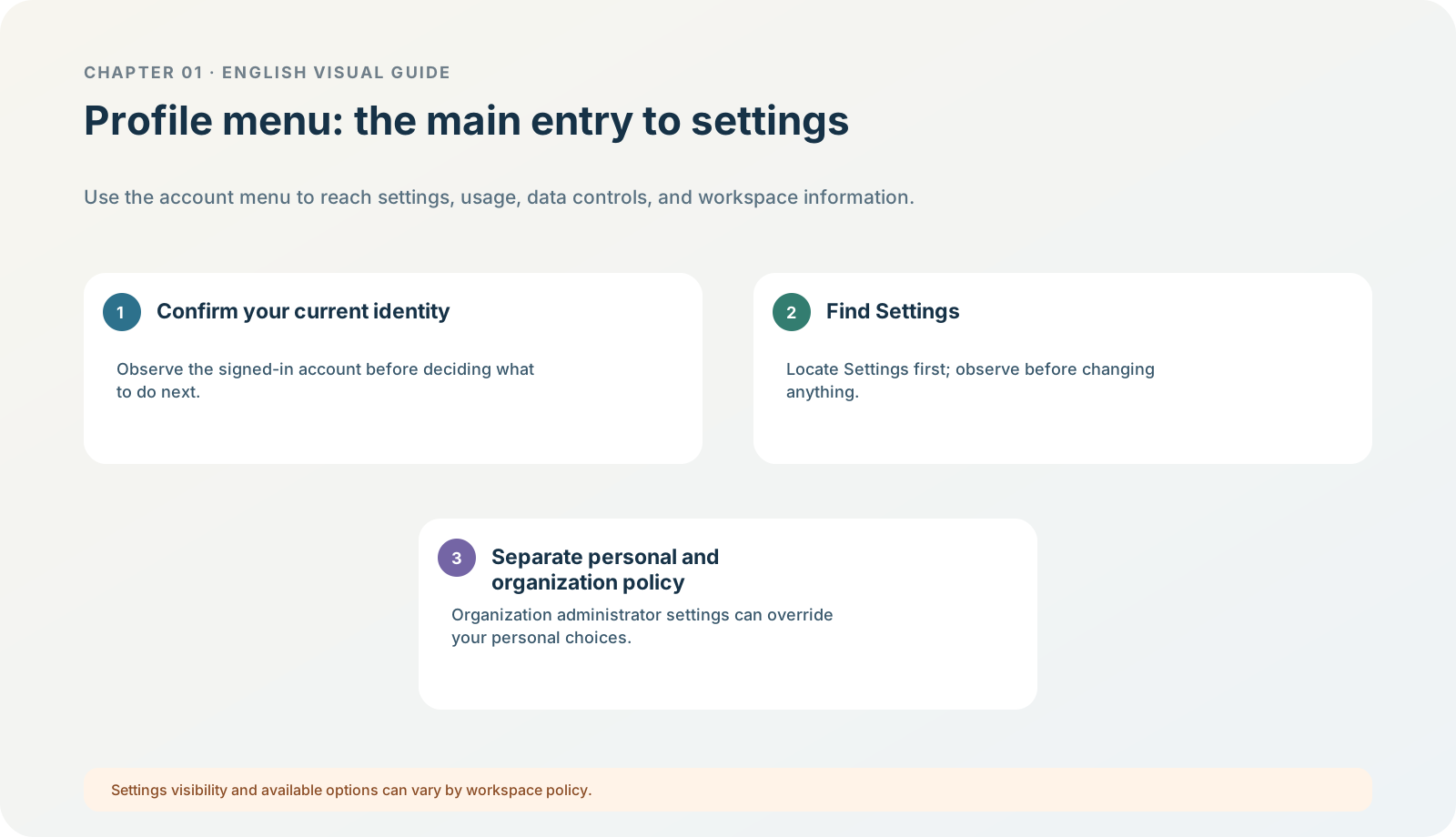
Figure 1-5 · DIA-01-05-01. Profile and account menu (teaching diagram, not a live-product screenshot).
This section answers: How do I know who is currently signed in, which space I am in, and what I can change myself?
Why locate first, rather than configure first
The account menu commonly puts identity, workspace, settings, help, usage, and sign-out together. The beginner risk is not “not knowing where to click”; it is mistaking a switch they have just changed for the product’s default state. The first task in this menu has only one purpose: identify the entry point and current identity. Do not make experimental changes.
What you will see
Do not start by looking for the web avatar menu from an old tutorial. The current desktop app places many daily entries in its sidebar and Settings panel. In the current official desktop demonstration, Settings is at the bottom of the sidebar; profile and usage overview are under Settings > Profile. Before changing global behaviour, distinguish whether it is a Profile, General, Personalization, or permissions/connections setting. The location of account, workspace, and plan information can still depend on sign-in state, organization policy, and version.
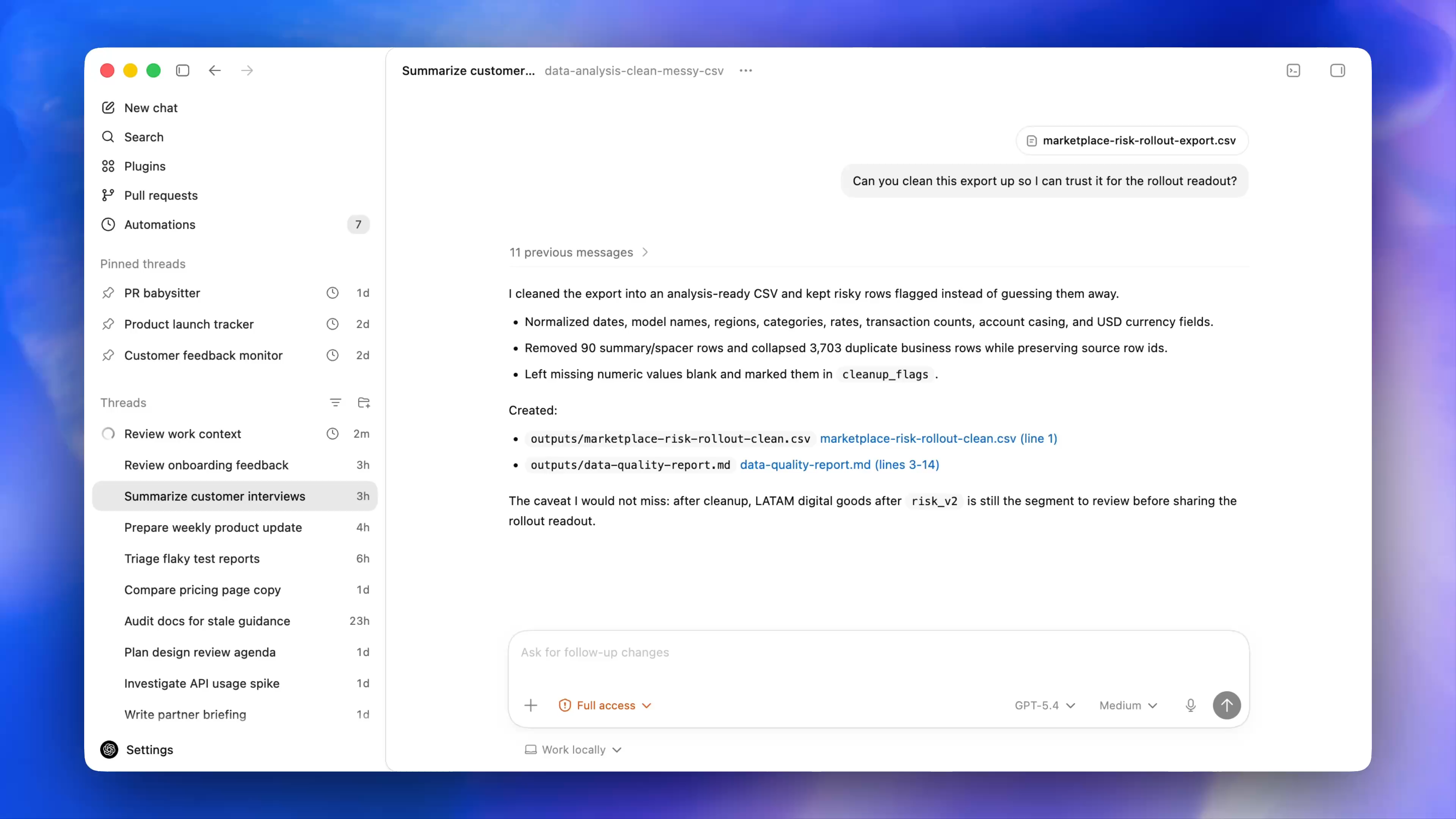
Figure 1-5A · CUR-01-06-01. A frame from a public desktop demonstration on OpenAI’s current Learn product page (verified 2026-07-30; source page). Settings is visible at lower left; the other sidebar items are only for recognising the current layout. Threads, projects, models, and permission state in the image are part of the official demonstration and cannot be extrapolated to your account.
Follow along: six observation points
- Confirm whether the current display is a personal space or organization space.
- Find the workspace switcher (if present), but do not switch to an unfamiliar space.
- Find Settings.
- Find Data controls or a similar entry.
- Find Help and Sign out.
- Close the menu without changing an option.
Expected result: you know where settings are while preserving the original state, so every later change has a baseline for comparison.
Use the case to test the boundary
North Shore Reading Club is a fictional exercise. It does not require switching workspaces, adjusting training switches, or viewing a payment page. If you teach this chapter to someone else, ask them only to point out the entries; do not ask them to display a personal avatar, email address, or usage.
Minimum exercise and acceptance
Without changing a setting, find the three kinds of entry: “current space”, “settings”, and “sign out”.
Pass condition: you can state that personal preferences and organization policy may not be the same layer. Common pitfall: deciding what you ought to see from the model or plan balance in someone else’s screenshot. Next: see the desktop app as four functional areas, not as one fixed screenshot.