 YunLab.ai
 CHAPTER 01 · 1.7
Chat, Work, Codex, and Voice: choose the right way of working first
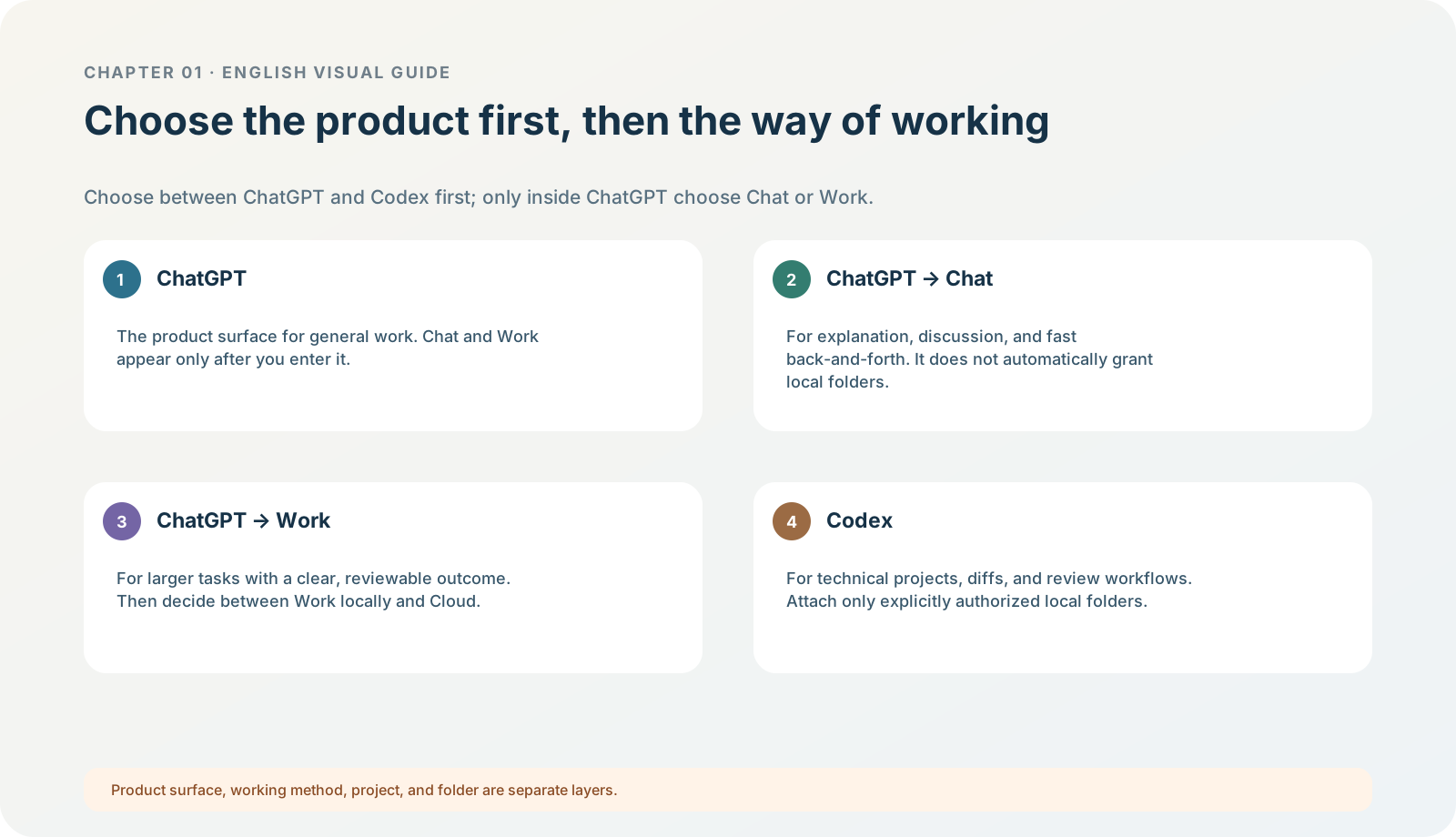
Figure 1-7 · DIA-01-V2-02. Current hierarchy of work modes: choose ChatGPT / Codex first; Chat / Work exist only within ChatGPT (teaching diagram, not a live-product screenshot).
This section answers: Are Chat, Work, Codex, and Voice capability levels? Which should I choose first?
Start with what you need to deliver
They are not a ranking from “weak” to “strong”. In the current product, go to the right level first, then decide whether you need permissions:
| Your goal | Current starting point | Why | This chapter’s stop line |
|---|---|---|---|
| Get an explanation, comparison, outline, or continue a conversation | Choose ChatGPT → Chat | Chat is for questions and answers, discussion, short drafts, and quick iteration. | Do not upload an entire project just because one conversation goes well. |
| Produce a reviewable report, table, plan, or file around material | Choose ChatGPT → Work | Work is for larger tasks with a clear outcome that will be viewed, modified, or reused. | Limit material, tools, stop conditions, and acceptance first. |
| Read, explain, test, review, or modify a software project | Choose Codex | Codex shows development details, diffs, review, and project workflows. | For the first time, open only the fictional exercise folder and choose Ask for approval. |
| Express, follow up, or change direction by speaking | Use Voice (if visible) in the currently visible ChatGPT → Chat / Work or Codex | Voice is an interaction method, not a fourth permission level. | Do not treat voice as a way around privacy rules. |
What you will see
Some accounts show a Chat/Work switcher and some show only part of it; Codex may also be limited by workspace or rollout. A feature you cannot see means only “currently unavailable or not displayed”, not that installation failed. The key is not to treat Work as an independent old entry again: it is within ChatGPT; Codex is the other side of the product selector. Current official information: Use ChatGPT
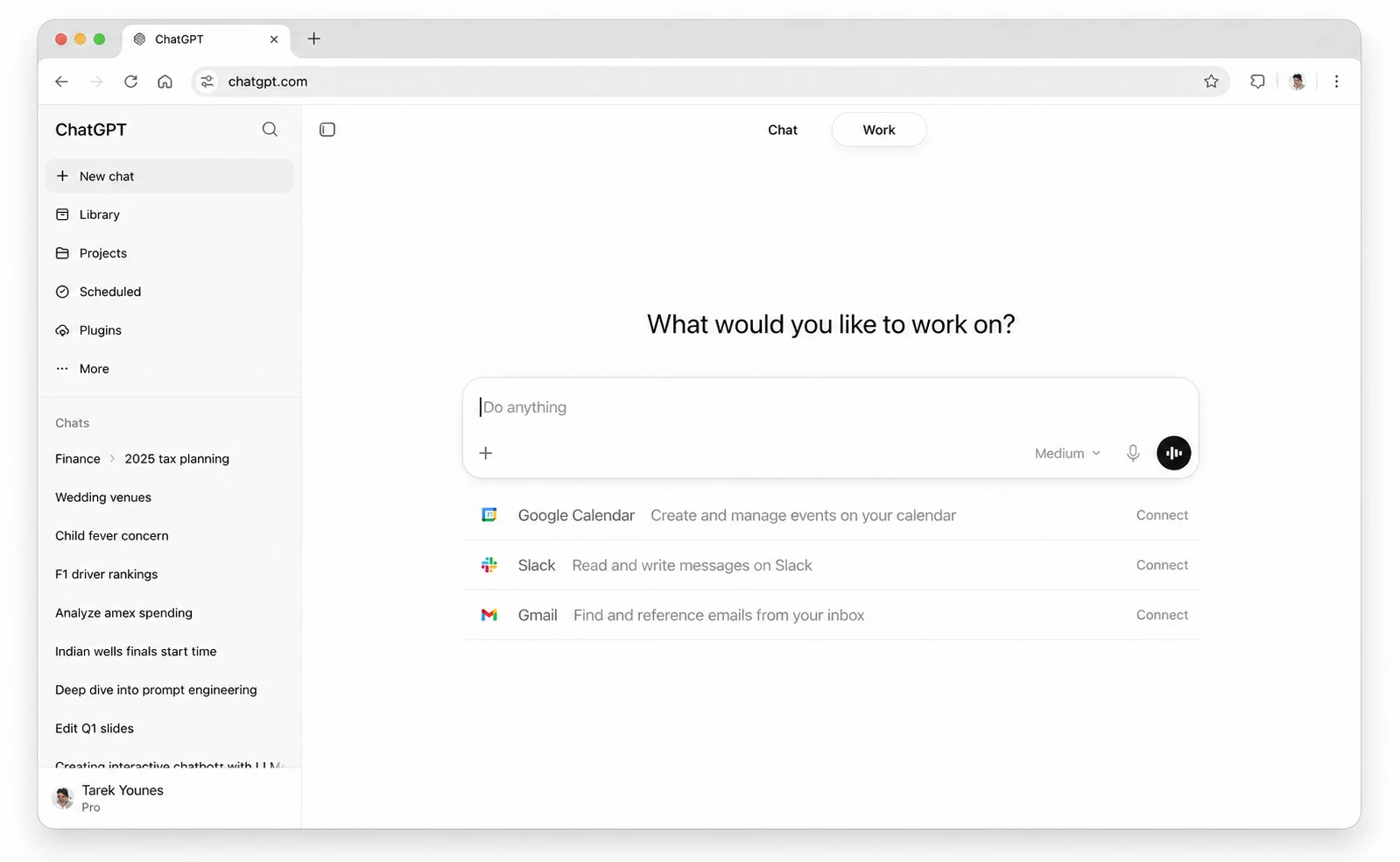
Figure 1-7A · CUR-01-07-01. OpenAI’s current public image of ChatGPT Work (verified 2026-07-30; source page). Work is selected, showing that Chat and Work are two ways of working within ChatGPT. This is a web product surface; for the desktop app’s specific location, use the in-app product selector and Use ChatGPT.
The minimum Voice operation: be able to speak and be able to stop
This section does not treat Voice as a “faster way around things”. It still works in the current chat: spoken tasks, material scope, and follow-ups enter the current conversation. In desktop Work or Codex, it also inherits the tools and permissions available to that experience. Voice therefore cannot bypass a task card, and saying sensitive information aloud does not mean it “does not count as uploading”. ChatGPT Work and Codex
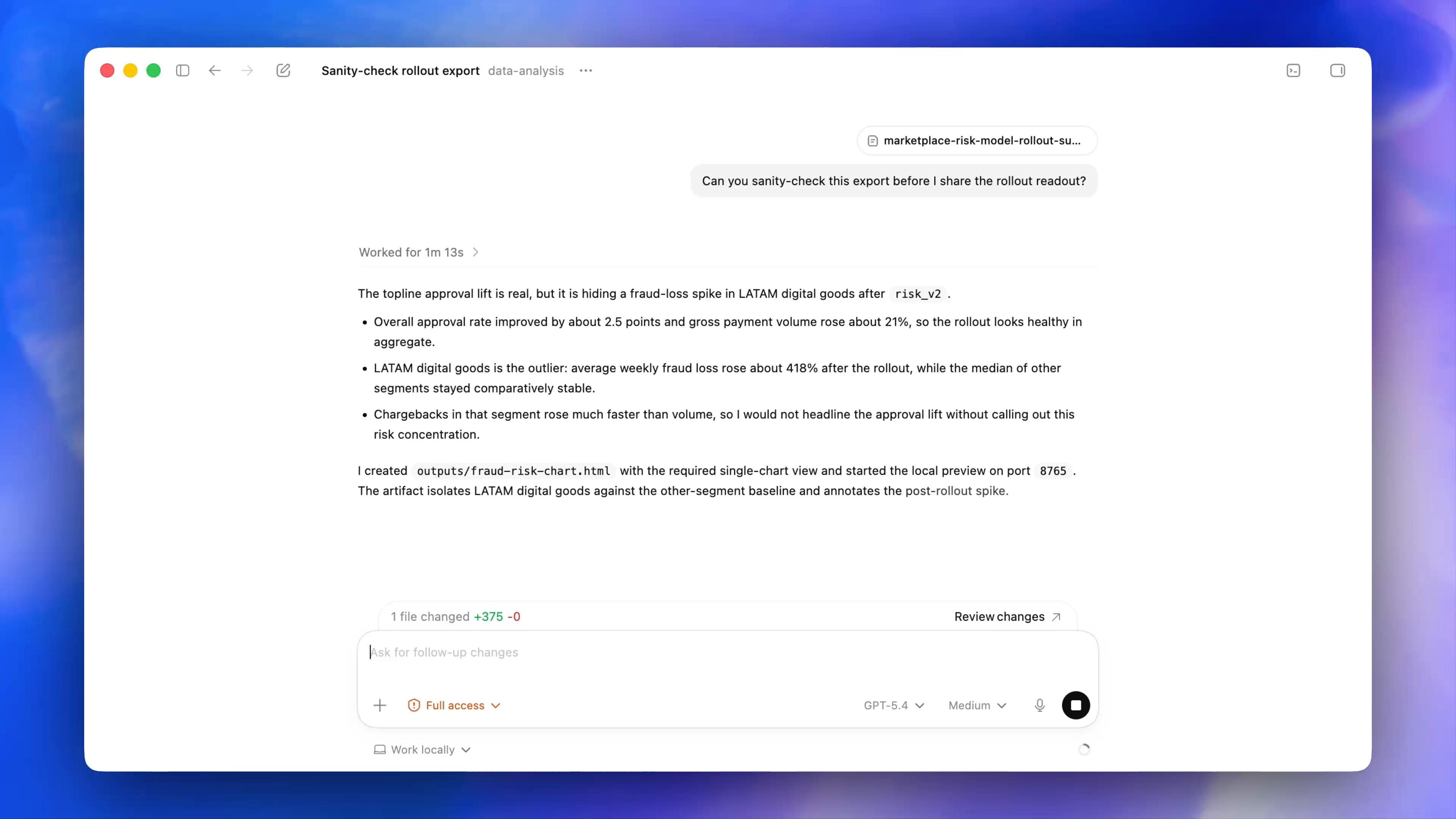
Figure 1-7B · CUR-01-12-01. The composer in a current official desktop demonstration shows Voice/microphone-related controls next to task controls. It only helps you recognise that Voice begins near the composer; the model, Full access, file changes, and any specific icon state are not reader defaults, and it cannot prove that Voice is enabled for you.
For the first time, do only one non-sensitive test:
- In the desktop app, choose the currently visible Work or Codex. If you can see Voice only in Chat, you may use Chat for this text-only test. Do not create a project or open a local folder for it.
- Find the Voice control, or use a shortcut you have personally configured in Settings. OpenAI does not define one universal default desktop Voice shortcut for everyone.
- When the system asks for microphone access, first confirm that the requester is ChatGPT and that you deliberately selected Voice just now. Decide only about the microphone for this test; do not also approve screen recording, accessibility, browser, or folder access merely because you want to speak.
- Say one fictional test sentence: “Reply only ‘Voice input has started’; do not call tools, access files, or use the web.” Observe whether the text appears in the current chat.
- When you need to pause, use the mute / exit / end-Voice control shown by the current interface. After ending, check the chat record and confirm that you did not accidentally speak a real name, password, verification code, client information, or API key.
Expected result: you can start, say one sentence, stop, and know that “voice content belongs to the current task context”. If Voice is not visible, record “not currently displayed”, then check plan, workspace, region, and app version; do not upgrade, buy credits, or enable higher permissions merely to complete this small part. Current desktop Work/Codex Voice is for eligible macOS/Windows accounts, and the microphone is its basic separate permission; screen and accessibility access appear separately only when computer context is needed. Voice with desktop Work / Codex
Follow along: task-matching exercise
Choose one starting point for each task below and write one reason:
- A: explain “what is a read-only task”;
- B: organize an event-risk list from two fictional materials;
- C: review a test failure in a code repository;
- D: say the question in A aloud.
Reference answer: start A in Chat; if Work is visible, start B in Work, otherwise use controlled Chat; use Codex for C; D only changes the input method in the currently visible Voice experience. The important thing is not the name, but material and action boundaries.
Choice for the running case
The first North Shore Reading Club exercise should preferably be completed in Codex’s restricted exercise folder while keeping Ask for approval. If you can currently use only ChatGPT → Work and the task really needs to read local exercise files, keep Work locally. Cloud suits tasks that must continue after the computer is shut down or continue from web/mobile; it is not the default “more advanced” option. If Work is not visible, you do not need to move to a high-permission mode just to “follow the book”. You may use a new chat and clearly state read-only, no web access, and no writes. Get started with ChatGPT Work
Pass condition: you can separate “discussion, material organization, software task, and voice input”. Common pitfall: assuming that seeing Codex means it can or should operate the whole computer automatically. Next: distinguish three containers: chats, projects, and local folders.