 YunLab.ai
 CHAPTER 01 · 1.19
Skills, Plugins, Automation, and Commands: Know the Entrances, Do Not Rush to Use Them
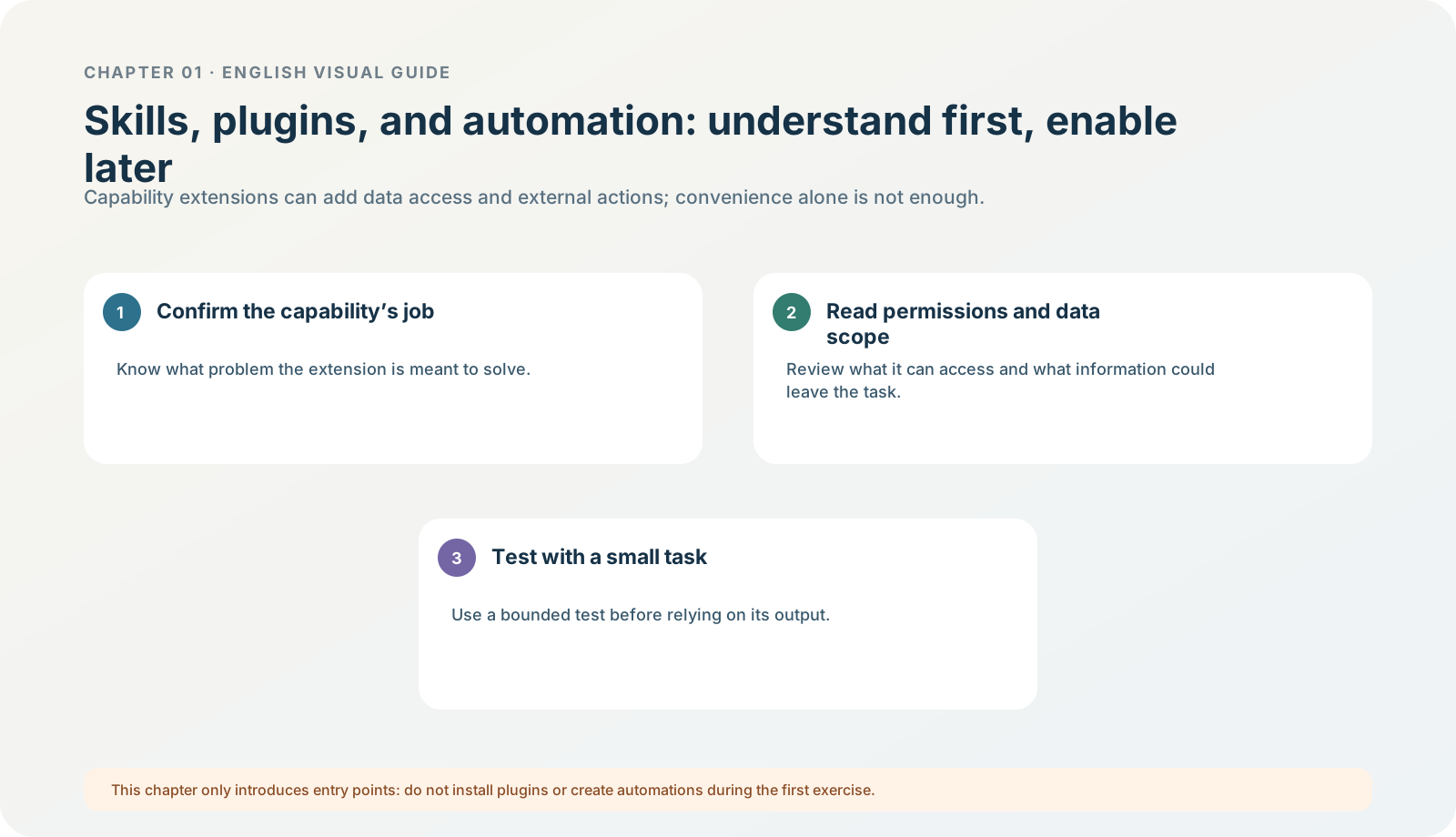
Figure 1-19 · DIA-01-19-01. Choice boundaries for Skills, plugins, and automation (teaching diagram, not a live-product screenshot).
This section answers: Are Skills, plugins, Apps, automation, and commands the same thing? Why should you not install something as soon as you see it?
Use one table to establish the relationships
| Name | What it usually provides | What you first need to check |
|---|---|---|
| Skill | Reusable task instructions, prompts, and workflow patterns. | Does it only provide a method, or can it call tools as well? |
| Plugin | A workflow capability package that can contain Skills, connectors, MCP, browser extensions, hooks, or scheduled-task templates. | Which capabilities does it contain, and which connections does it require? |
| Connector / connected app | Data from, or actions in, an external system. | What will it read, what will it write, will it synchronize, and who approves? |
| Automation / scheduled task | Continues to execute in the future or when a condition is met. | When does it trigger, what is its action scope, and what happens on failure? |
| Command | Triggers a preset operation or workflow. | Does it change files, configuration, data, or an external system? |
Current official information: the new plugin directory is a supported capability of ChatGPT Work (Web) and ChatGPT Work / Codex on desktop; Chat is not the supported surface for plugins. On desktop, choose ChatGPT → Work or Codex before opening Plugins. You generally need to create a new chat after installing a plugin. If it depends on a connector, connection and authorization still happen separately, and the plugin does not bypass the source system’s own permissions. Plugins
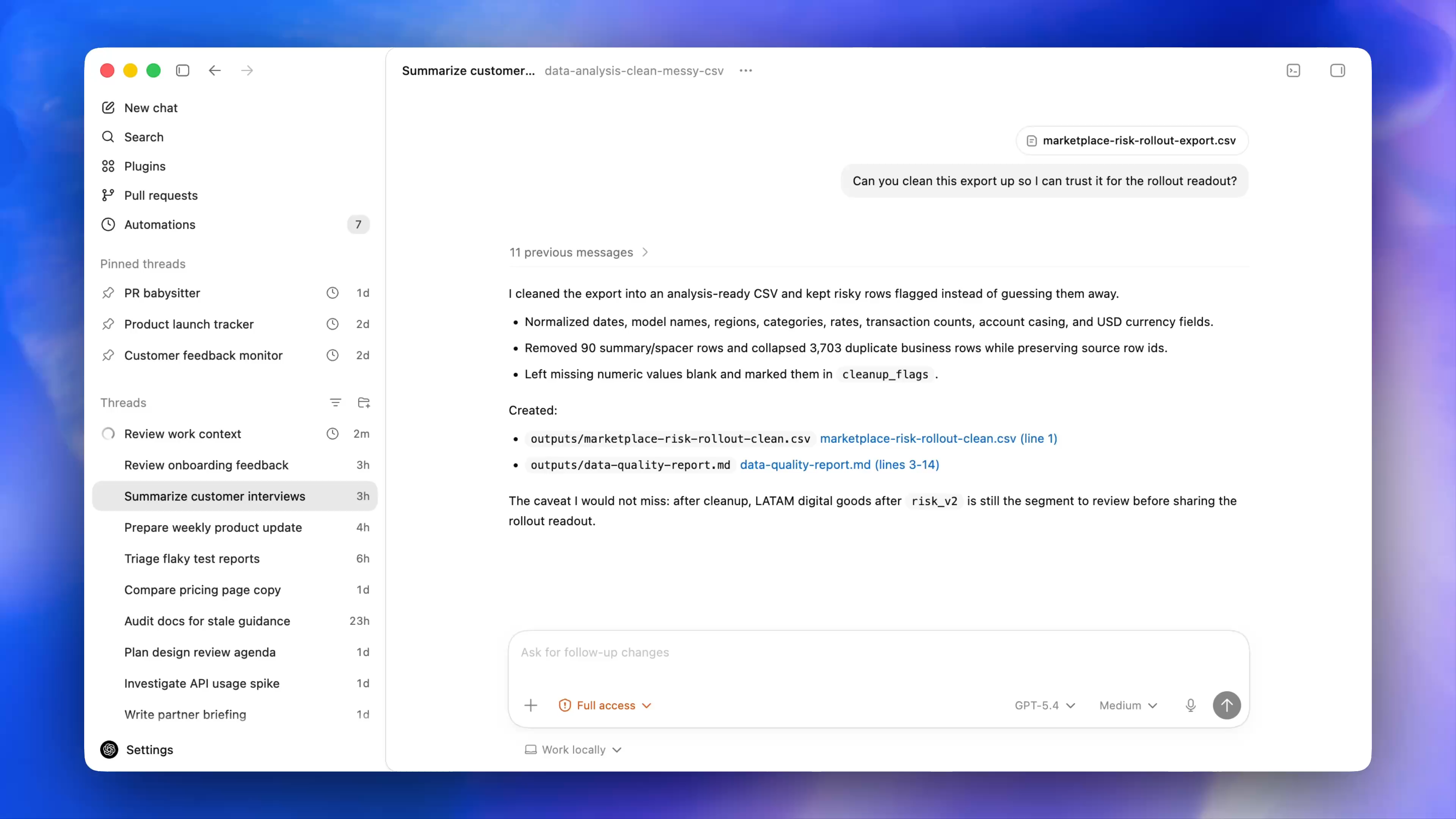
Figure 1-19A · CUR-01-06-01. The current official desktop demonstration shows Plugins and Automations in the sidebar (verified 2026-07-30; source page). Seeing an entry does not mean a plugin is installed, an external account is connected, or an automation is authorized.
Why “visible” does not mean “should be enabled”
A plugin list appearing only means that it was discovered or allowed to be shown. It does not mean it can access all your data, or that it is appropriate for your task now. Connecting OAuth, enabling synchronization, allowing write actions, and setting automation are independent choices. Especially in an organization workspace, administrators and source-system permissions jointly limit the capability.
Follow along: the five-question card for a plugin / Skill
When you encounter a capability extension for the first time, do not install it. Fill out only this card:
- What concrete work does it solve?
- Which of Skill, connector, MCP, browser extension, hook, or template does it contain?
- What data will it read, and from which system?
- Will it create, modify, send, or synchronize anything?
- Can I first run a small test with fictional materials, a read-only scope, and human approval?
If any item cannot be answered clearly, the correct action is “do not enable it in this chapter.” The North Shore exercise needs no plugin, automation, or command at all.
Minimum exercise and acceptance
Distinguish these two statements: I saw the plugin directory and I have authorized an external connector to read materials.
Reference answer: the former discovers an entry; the latter is a real change to data and permissions, with a completely different risk. Common pitfall: treating “install a plugin” as a decorative action with no data or permission implications. Next: learning search, history, projects, and archives lets controlled work leave a traceable record.