 YunLab.ai
 CHAPTER 01 · 1.23
Chapter Troubleshooting Entry Points
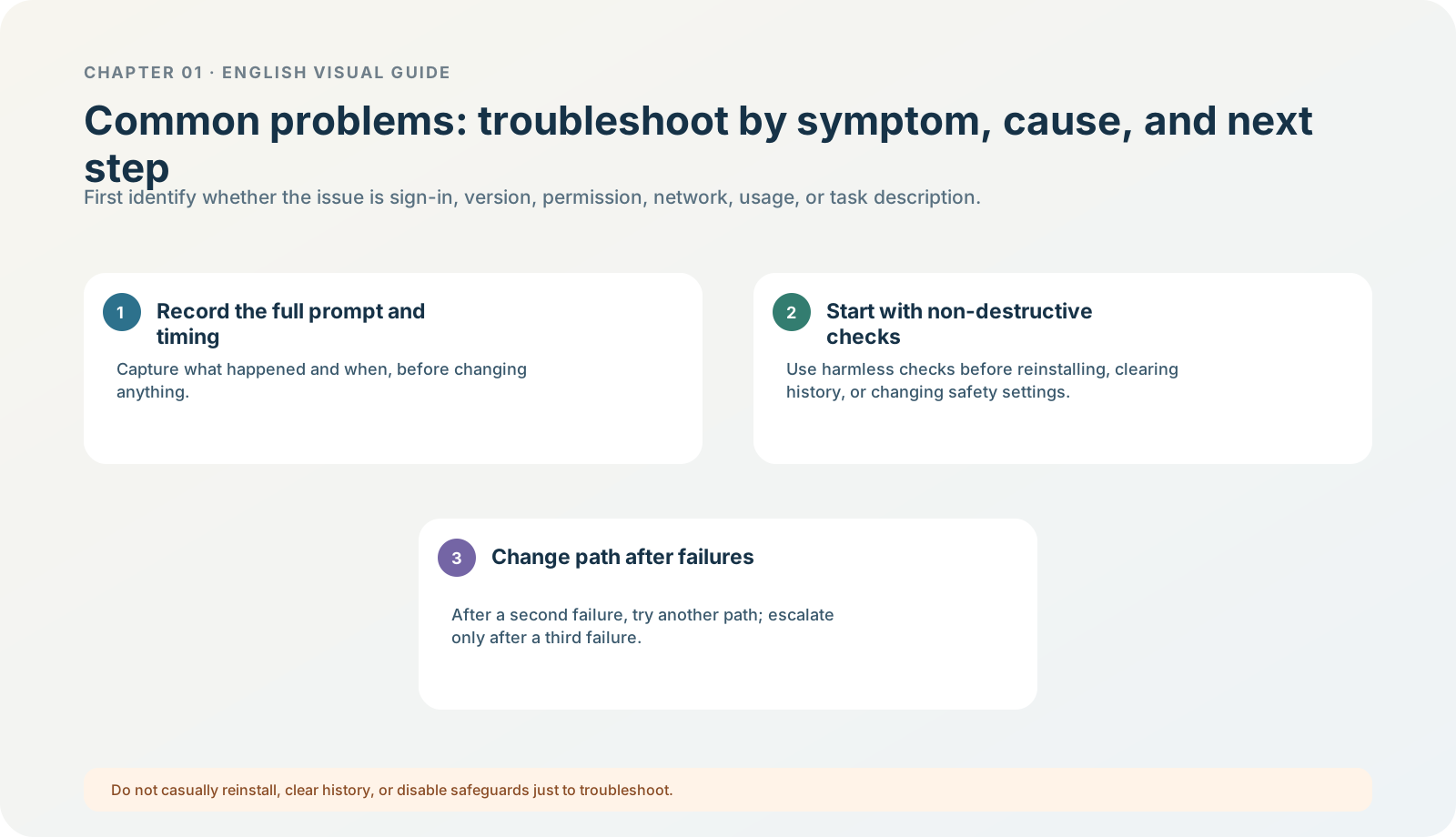
Figure 1-23 · DIA-01-23-01. Troubleshooting entry points (teaching diagram, not a live-product screenshot).
This section answers: When there is a problem with the model, sign-in, folder, history, or usage, where should you look first?
Record first, diagnose second, change third
The most important part of troubleshooting is not “try more actions,” but assigning the problem to the correct layer. Each time, first record the time, current product / version, account or workspace type, what you were doing, the complete prompt text, and whether files / permissions / usage are involved. Do not put passwords, keys, client data, or a full private screenshot in the record.
One symptom–cause–next-step table
| Symptom | Common cause category | First non-destructive check | What not to do first |
|---|---|---|---|
| Cannot see ChatGPT / Codex, or the Chat / Work entry within ChatGPT | Version, plan, region, workspace, or rollout cadence. | Check product, version, account space, and official guidance. | Reinstall, switch accounts, or expand permissions. |
| After sign-in redirect, the space is wrong | Browser sign-in state or organization space differs. | Exit the wrong flow and check the current account / workspace. | Copy organization material into a personal space. |
| Cannot see GPT-5.6 or an effort tier | Eligibility, workspace administration, client version, or gradual rollout. | Read the selector hint and check version and official availability. | Force configuration changes or diagnose from someone else’s screenshot. |
| The task requests extra files / web access | The task card is unclear or the model proposes an out-of-scope action. | Refuse the request and reduce materials and prohibitions again. | Click Allow directly. |
| Cannot open the exercise folder, or the system says there is no file-access permission | You are not in a local Work / Codex workspace; the wrong folder was selected; the current request exceeds scope; or the system has not agreed to this access. | Confirm you are in Codex or Work that can work locally; use Open folder again to select only the exercise pack; if a system prompt appears, check that the requester is ChatGPT and its target is the exercise pack. | Authorize Documents / Desktop, disable system protections, or test with real material. |
| The task stops and asks for approval | Usually not a failure: Ask for approval is working at the boundary. | Read what it will read, write, use the web for, or send; approve only if the action is fully within the task card, otherwise refuse or narrow it. | Change directly to Full access or Auto-review because the task is stuck. |
| AI says it cannot find a file or did not read the materials | The file was not attached, the exercise folder was not opened, or a Chat / Cloud entry was mistaken for local-file access. | Check whether the current task explicitly shows the exercise folder or attachments; reopen only the exercise pack, or manually attach only the two fictional files / text before sending the task card again. | Grant a larger directory, upload real materials again, or let AI “find the computer by itself.” |
| A file will not open or output does not meet requirements | Generating an artifact does not mean it passed acceptance. | Open the file and compare it with the format and task card. | Share it directly or delete the original material. |
| A usage limit is reached | Task complexity, model, plan, or shared-pool state. | Read the limit banner / usage page and shrink the task. | Use an API key to bypass it or buy blindly. |
| Cannot find a historical task | Title, archive state, project membership, or client state. | Search keywords and check projects / archive. | Assume the chat is permanently lost and create a duplicate task. |
“It asks for approval” protects the boundary. “It cannot find the file” is usually an entry-point or attachment-scope problem, not a broken model. Separate these two first; only then consider version, plan, or reinstallation. That prevents the first exercise from turning a small problem into a broad authorization. Follow Permissions and ChatGPT Work and Codex for current permission modes and conditions for desktop Work / Codex and local folders; different workspaces can show different options.
The three-attempt rule: non-destructive first, alternate path second, escalation third
- First: check facts and official guidance without changing data.
- Second: switch to a smaller, clearer, lower-risk verification path, such as the North Shore exercise rather than real material.
- Third: seek support or ask the workspace administrator with your record, stating the version, space, prompt, and reproduction steps already checked.
Minimum exercise and acceptance
For “my model list differs from the tutorial,” write a fault card: the symptom, facts you have already confirmed, and the next non-destructive check.
Expected result: you can separate one “stuck” event into an entry-point, identity, permission, material, usage, or output-acceptance issue, rather than saying only “it does not work.” Passing standard: you can say what to check first for “it requests approval” and for “it cannot find the file,” without expanding the directory, permissions, or real-material scope. Reference-answer example: “Symptom: the model list differs; confirmed: desktop-app version, current personal / organization space, tutorial date; next: read the model-selector hint and check the official GPT-5.6 availability page.” Common pitfall: treating uncertainty as failure and reinstallation as the first choice. Next: use the final chapter checklist to confirm what capability you have actually gained.