 YunLab.ai
 CHAPTER 06 · 6.16–6.22
Handbook version: v1.0 · Official material check: 2026-08-23 · The current interface and account availability depend on each reader’s own state.
6.16 Human delivery gate
Why
The human delivery gate is the final item-by-item check. It answers “can this be handed off now?” rather than “has AI finished writing?”. If one item cannot be checked, keep it pending and do not enter sending or publishing.
How to do it in Codex Desktop
Copy the checklist below into the personal workbook and have a person check each item:
□ All three drafts come from the same source version
□ The four material names match
□ Every cutoff is Thursday 17:00
□ The two pending confirmations are still labeled pending
□ The applicable scope has not expanded
□ Promises that cannot be made are still retained
□ A person has opened and checked the files
□ The current action is a human decision; do not send or publish
□ Human decision: pass / return / continue pending confirmation (choose one and record the reason)
The following diagram only explains the relationship between drafts and a human decision. It does not represent a fixed button or an automatic sending function.
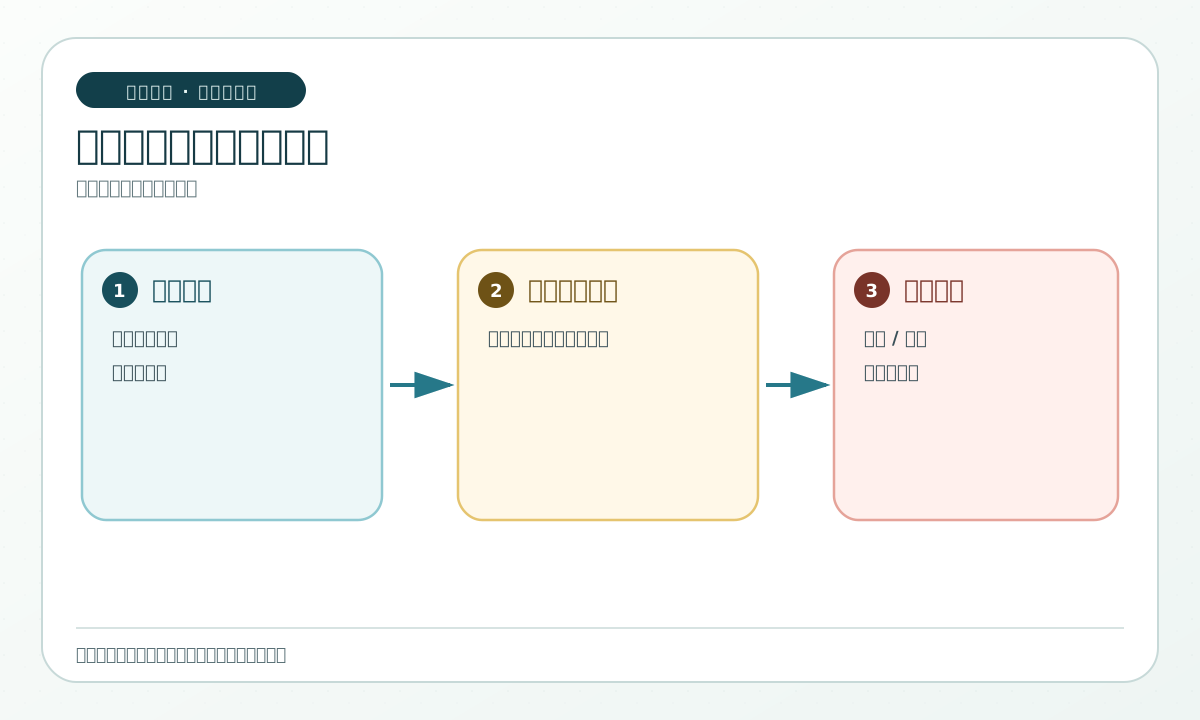
What you should see
Each item has an evidence location or a human note. The status does not become “passed” automatically because Codex replies “complete”.
Common pitfalls
- Treating “the file exists” as a passed gate. The warning sign is no record that a person opened and checked it. Return to human inspection.
- Designing the gate as automatic sending. The warning sign is an automatic external action. Delete that action description and stop.
6.17 Simulated delivery and acceptance record
Why
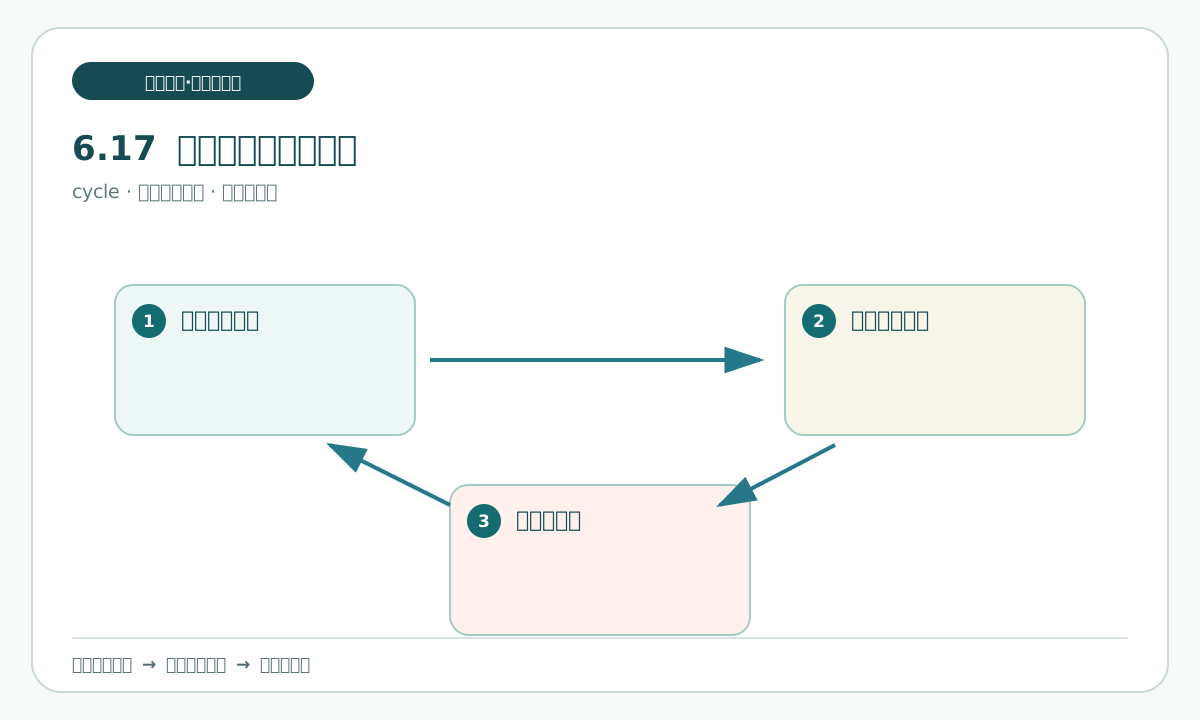
Without actually sending anything, you can rehearse how another person might receive, inspect, and question a package. A simulated record helps reveal whether handoff information is sufficient, but it cannot pretend that a real person signed off.
How to do it in Codex Desktop
In the workbook, create a simulated acceptance record with these fields: receiving role, files opened, facts observed, questions, decision, reason, and next safe action. Only three decisions are allowed: pass, return, and continue pending confirmation.
Read only the personal workbook and the three drafts.
Generate a blank simulated acceptance record. Do not enter a receiving person's name and do not pretend that anyone has already accepted it.
Keep “pass”, “return”, and “continue pending confirmation” as the three choices, and leave a reason field for each choice.
What you should see
The simulated record may be filled with status examples like these:
| Status | Example reason | Next safe action |
|---|---|---|
| Pass | The three draft fields match and a person opened and checked them | Still do not send; wait for the user's decision |
| Return | One draft turned a pending confirmation into a definite statement | Return to the source and mapping for correction |
| Continue pending confirmation | The applicable scope of the lead role is not yet decided | Keep the draft and add internal confirmation |
This is only a record-format example. It is not a real decision made in this exercise.
Common pitfalls
- Writing the
simulated acceptance recordas a real signature. The warning sign is a real name or signature date. Use a role and “simulated” instead. - Using “pass” without a reason. A reason and evidence location are required; otherwise keep the status pending.
6.18 Correct and roll back after finding an error
Why
If one version has the wrong cutoff, manually editing three drafts creates new differences. The correct method is to return to the source, create a new version, and re-derive the affected drafts.
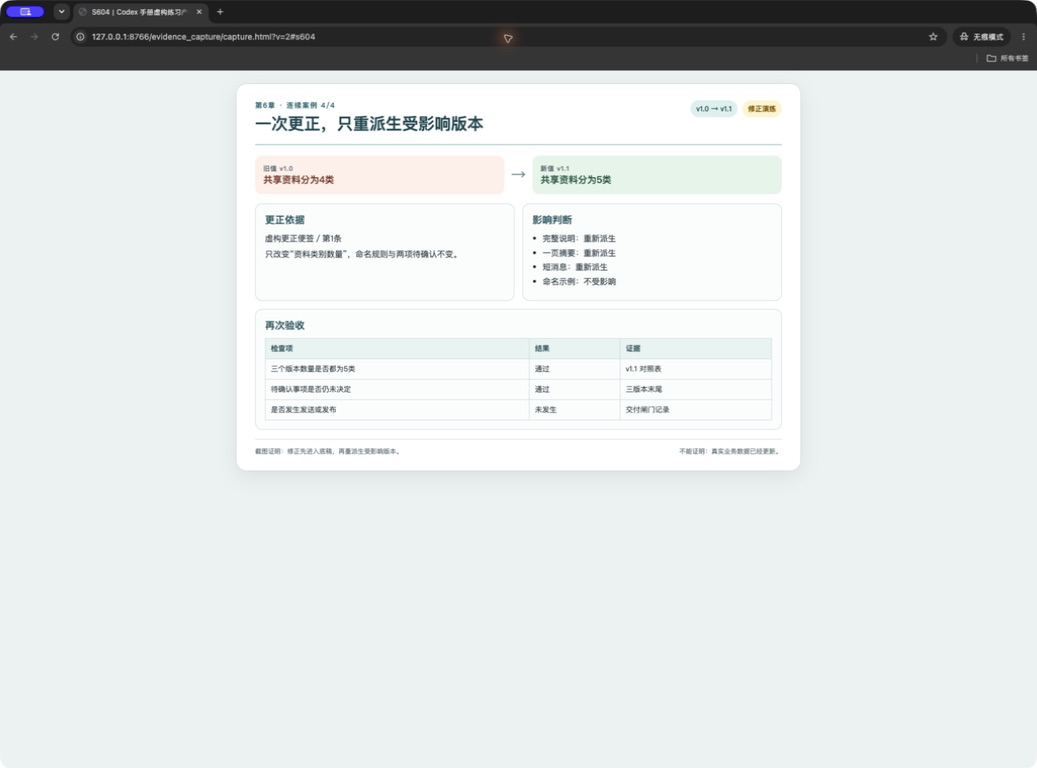
This exercise sets a concrete correction trail: source v1.0 originally records the correct value “Thursday 17:00”. During the exercise, copy an error version v1.0-error and mistakenly change the cutoff to “Friday 17:00”. After a human check finds the error, keep the old record, create v1.1, and restore “Thursday 17:00”; then re-derive only the affected outputs from v1.1. “Rollback” means returning to the latest source state that can be evidenced. “Minimal correction” means changing the cutoff field only.
How to do it in Codex Desktop
First pause all output edits. In the correction record, write the old value, new value, basis location, affected versions, and human decision. Keep the correct v1.0 baseline and the v1.0-error error copy. Then use the correct v1.0 baseline to create v1.1 and update the cutoff field only. Use this request:
Read only source v1.0, the error copy v1.0-error, the correction record, and the three drafts.
Point out every location where “Friday 17:00” came from v1.0-error, and list the affected scope. Do not overwrite the three drafts.
The only permitted new writes are “source v1.1” and the correction record in the personal workbook. Use the correct v1.0 content as the v1.1 baseline and keep the cutoff as Thursday 17:00; retain v1.0-error as an error record.
Do not delete the old value or add facts. Confirm the affected scope, then stop and wait for a human decision.
The following diagram shows only the order “find error, update source, re-derive”. It does not mean that automatic repair has occurred.
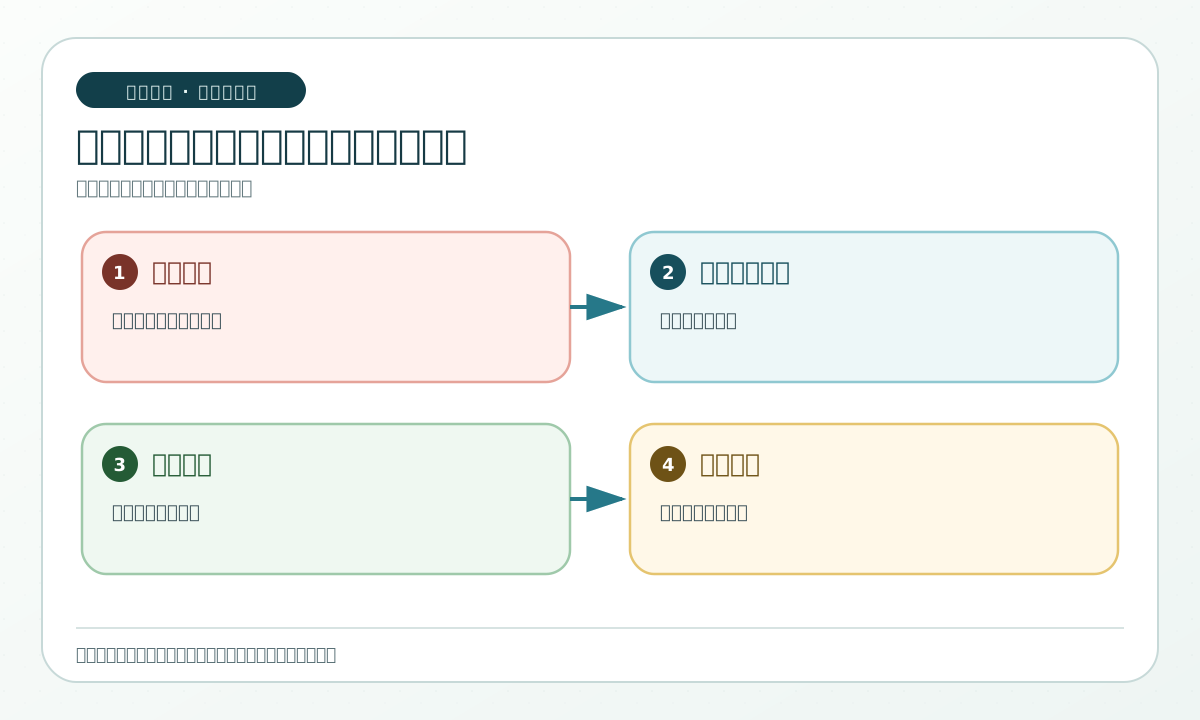
What you should see
The old v1.0 value remains traceable, and v1.1 changes only the cutoff back to Thursday 17:00. The three old drafts are marked “needs re-derivation” rather than being silently overwritten.
Common pitfalls
- Replacing the date directly in three outputs. The warning sign is no new source version. Withdraw that step and return to the source to create v1.1.
- Continuing the repair after a second anomaly appears. The warning sign is another unexplained field or scope difference. Stop and report it; do not expand the correction.
6.19 Re-derive affected versions and accept them again
Why
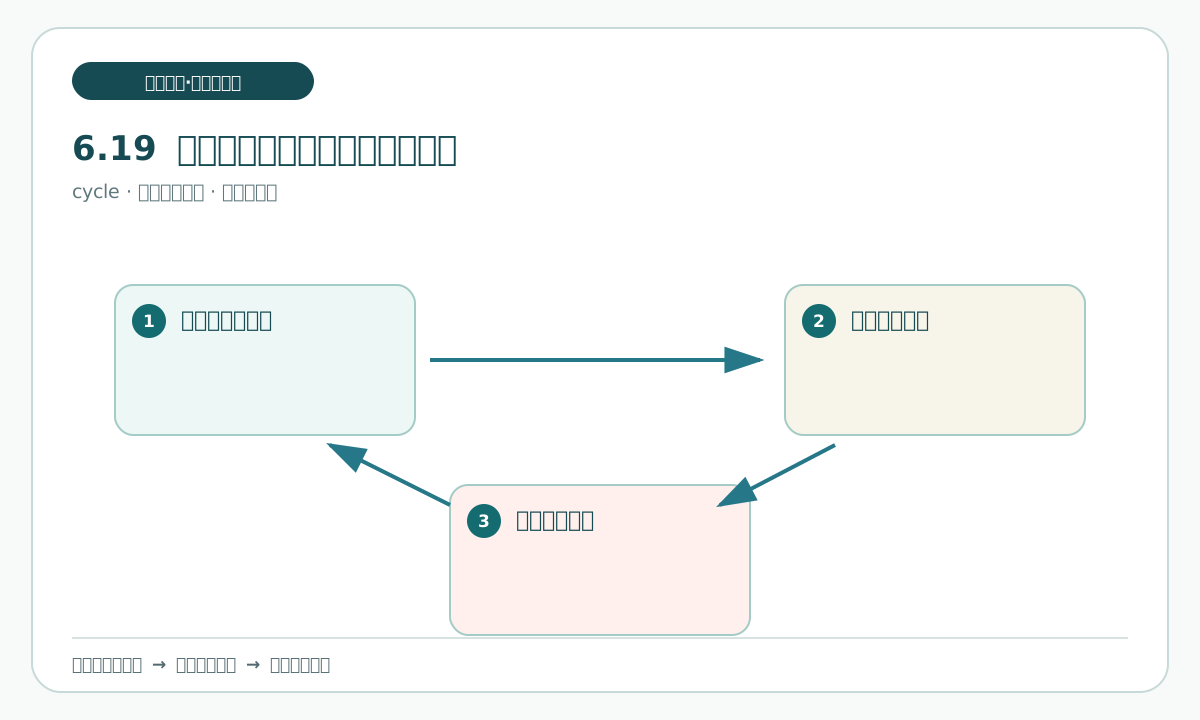
source v1.1 restores to Thursday 17:00 only the cutoff that v1.0-error incorrectly changed to Friday 17:00, so all three versions are affected. Re-derivation is not a rewrite of all content. It uses the same configuration again and checks the result against the mapping.
How to do it in Codex Desktop
State the read scope and write location in the new task:
Read only source v1.1, the three output configurations, field mapping, and the old drafts.
Re-generate the full explanation, one-page summary, and short message draft. The only change is the cutoff from Friday 17:00 back to Thursday 17:00.
Write the new drafts to three new personal copies; do not overwrite the old drafts.
After generation, list affected and unchanged fields. Do not send, publish, or modify the source.
What you should see
All three new drafts say Thursday 17:00. The four materials, two pending confirmations, scope, and promises that cannot be made stay unchanged. The old drafts remain for human comparison.
Common pitfalls
- Expanding a correction into “full polishing”. The warning sign is a large number of changed sentences. Keep only the cutoff-field change.
- Regenerating only the long explanation. The warning sign is that the summary and short message still say Friday. Re-derive every affected version through the mapping.
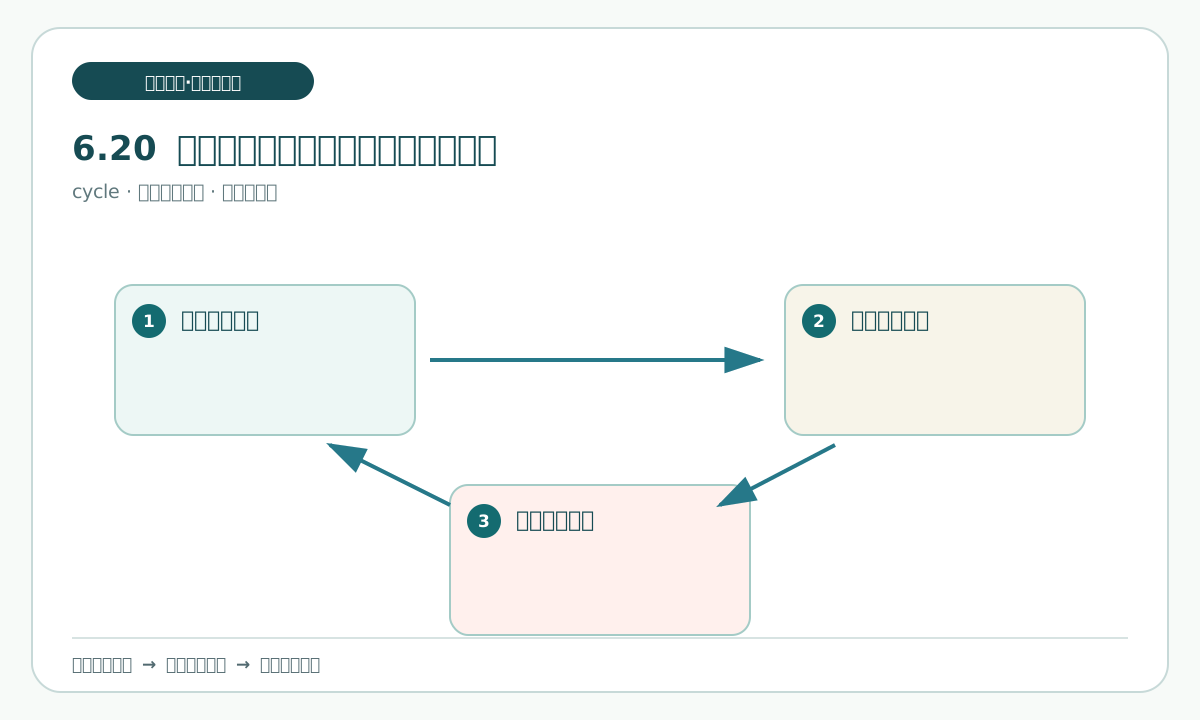
6.20 Standard exercise: complete the three versions and gate drill
Why
This section joins the earlier actions into one complete exercise. You need no real business material and no network access. Use only the fictional snapshot in this chapter and a personal copy.
How to do it in Codex Desktop
Follow the order below and have a person confirm each step before continuing:
- Make a dedicated practice folder, copy the blank workbook, and keep the original read-only.
- Fill the fact snapshot and confirm the four materials, two pending confirmations, Thursday 17:00, and promises that cannot be made.
- Create the v1.0 single factual source and fill its version, scope, and status.
- Fill the reader, intended use, channel, and length configurations for all three versions.
- Fill the
field mapping tableso each output field has a basis location. - Use Codex to generate the full explanation, one-page summary, and short message drafts separately.
- Have a person open all three drafts and check the date, status, scope, and limits.
- Fill the consistency matrix and the
human delivery gate. - Simulate a copy of
v1.0-error, change the cutoff to “Friday 17:00”, pause, and record the affected scope. - After a human finds the error, retain v1.0 and
v1.0-error, create v1.1, and restore the cutoff to Thursday 17:00. - Re-derive the three affected drafts from v1.1, save personal copies, and compare them.
- Fill the
simulated acceptance recordand retrospective judgment, stopping at “do not send or publish”.
What you should see
At the end, there is at least one source, one configuration table, one mapping table, three drafts, one consistency check, one human gate record, one correction record, and one simulated acceptance record. All files are in the personal practice folder and remain drafts.
Common pitfalls
- Handing all twelve steps to Codex at once without looking at intermediate results. The warning sign is that you cannot name each file location. Run in steps and have a person confirm.
- Sending the exercise result to a real channel. The warning sign is copying it into a chat, email, or public page. Stop immediately, keep the local draft, and let a person decide.
6.21 Review repeatability and whether automation is appropriate
Why
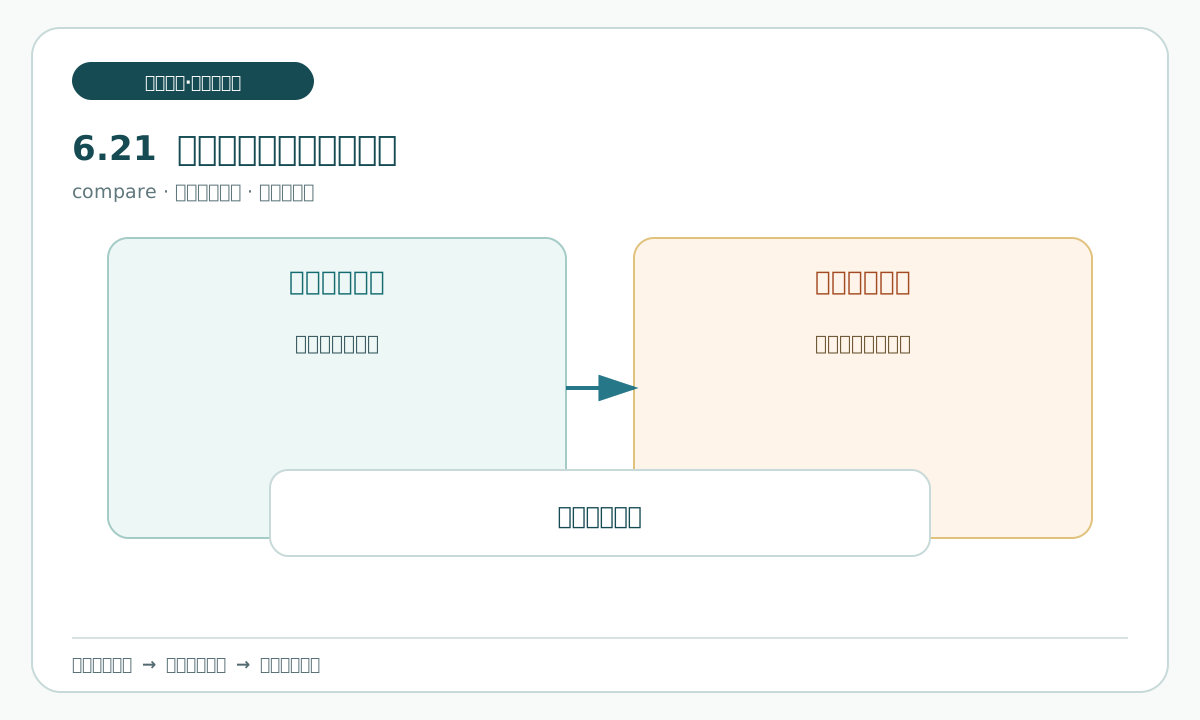
Not every step is suitable for automation. Automation means that a system repeats an action when conditions are met; it does not mean “let AI make the final decision for a person”. The review should identify what remains human, what AI may assist with, what is only a future candidate, and what is explicitly prohibited.
How to do it in Codex Desktop
Fill the four-category decision table in the workbook:
| Category | Suitable action | Conditions still required |
|---|---|---|
| Keep human | Final acceptance, sending, publishing, deletion, account, and payment decisions | A person opens the result and records a reason |
| AI assistance | Field mapping, difference marking, format cleanup, and an initial consistency check | Original input is read-only, output can be rolled back, and a person reviews it |
| Future candidate | Batch generation of drafts in a controlled copy | Stable examples, a stop line, rollback, and human sampling exist |
| Prohibited automation | Automatic external sending, publishing, deletion, permission bypass, or payment | Remain permanently before the human decision |
Copyable request:
Read only the steps and records from this exercise.
Put each step into “keep human”, “AI assistance”, “future candidate”, or “prohibited automation”, and write its reason, risk, and stop condition.
Do not write “future candidate” as approved and do not configure a scheduled task or an external action.
What you should see
Final acceptance and sending remain explicitly human. Field cleanup and an initial consistency check may be AI assistance. A future candidate still needs samples and rollback. External sending, deletion, payment, and permission actions are explicitly prohibited from automation.
Common pitfalls
- Treating one successful exercise as automation authorization. The warning sign is wording such as “send automatically later”. Move it to prohibited automation.
- Writing only “save time” without a stop condition. Add read-only input, rollback, and human sampling.
6.22 Chapter deliverables, pitfalls, and final check
Why
The final check does not write the content again. It confirms that the exercise can be safely handed to a person to continue. Chapter 6 remains before a human decision and does not enter real sending or publishing.
How to do it in Codex Desktop
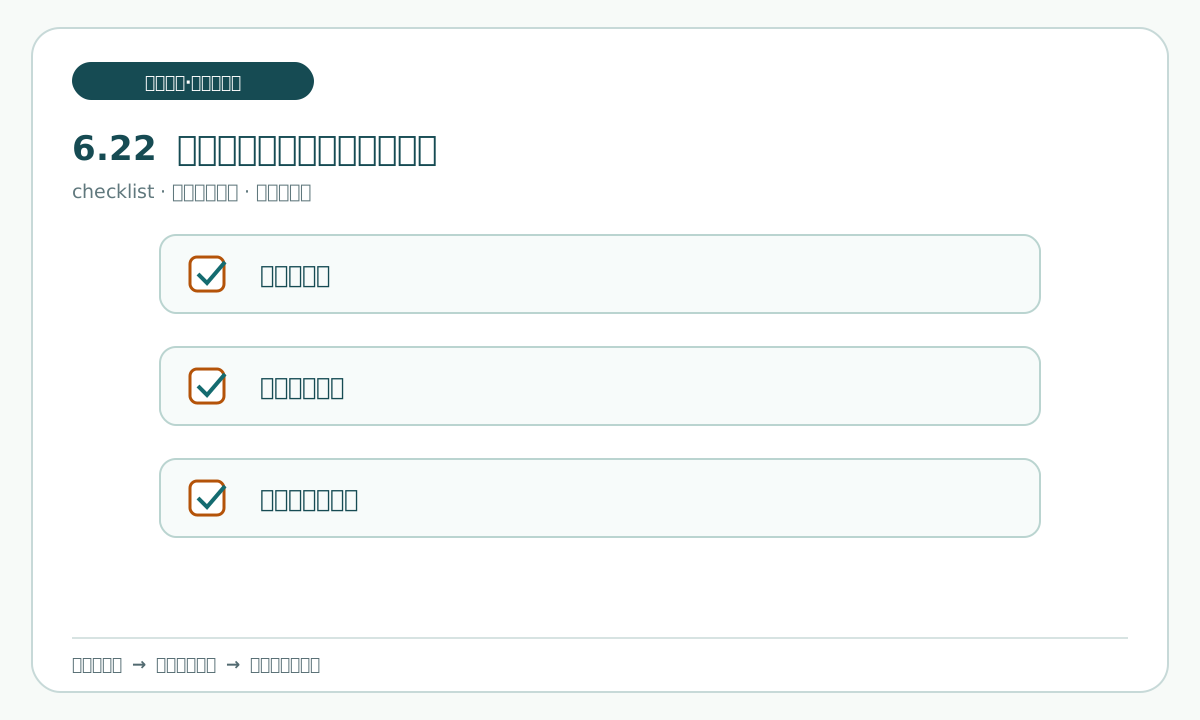
Open the personal workbook and the three drafts, then check each item:
□ There is one single factual source, with a version and applicable scope
□ All three outputs use that source, and field mapping is traceable
□ The four materials, Thursday 17:00, lead role, and two pending confirmations match
□ Promises that cannot be made have not been rewritten as guarantees
□ The correct Thursday value in v1.0 and the incorrect Friday value in v1.0-error are both retained; v1.1 restores the cutoff to Thursday 17:00 only
□ All three affected drafts were re-derived from v1.1
□ A person opened the files and found the format and content readable
□ The human delivery gate has a human decision and reason field
□ The simulated acceptance record does not pretend to contain a real signature
□ There was no network access, login, sending, publishing, deletion, payment, or real material
□ The retrospective distinguishes four automation categories
□ The next safe action is “human check, do not send or publish”
What you should see
The Chapter 6 deliverables are one factual source, three output configurations, one field mapping table, three drafts, a consistency check, a human delivery gate, a simulated acceptance record, correction and re-derivation records, and a retrospective judgment. All content is in the fictional practice folder. If a field is missing, facts conflict, a file cannot open, the scope changes, or a second anomaly appears, stop and report it.
Common pitfalls
- Using “it looks complete” instead of the checklist. The warning sign is no item-by-item result. Start the check again from the first item.
- Writing Chapter 6 completion as permission to publish. The warning sign is wording such as “sent” or “live”. Restore draft status and wait for a human decision.
This chapter's exercise stops before human checking; generating drafts is not sending, publishing, or a real desktop test.