 YunLab.ai
 CHAPTER 06 · 6.8–6.15
Handbook version: v1.0 · Official material check: 2026-08-23 · The current interface and account availability depend on each reader’s own state.
6.8 Form the full explanation version
Why
The full explanation is the version for a lead to review. It need not be ornate. It must let the reader see the purpose, organized material, pending confirmations, cutoff, and promises that cannot be made in one pass.
How to do it in Codex Desktop
In the workbook's “Full explanation template”, first place the output configuration and field mapping. Then use the request below. The only output must be written to the personal workbook's full-explanation area:
Read only the factual source, full-explanation-config.md, and field mapping in “chapter-06-personal-workbook.md”.
Generate a “full explanation for the lead”. Use only source facts and retain the two pending confirmations, Thursday 17:00, lead role, applicable scope, and promises that cannot be made.
Mark the output “draft, awaiting human acceptance, do not send”. The only write location is the full-explanation area.
Do not add facts, change the time, decide for the lead, send, or publish.
What you should see
The following is a full explanation example consistent with the fixed snapshot:
Full explanation for the leadPurpose: Turn already organized onboarding material into drafts that a lead, a team, and a colleague can review separately.
Four materials organized in this round:
- Onboarding notes draft
- Tool list draft
- Frequently asked questions draft
- First-week plan draft
Two matters not yet confirmed:
- Whether each material needs an owner role.
- Whether the first-week plan needs finer steps.
Organization cutoff: Thursday 17:00. Lead role: Material organization lead. Applicable scope: The four shared-material items in this fictional exercise; no other material.
Promises that cannot be made: The material is not promised to be finally approved; the first-week plan is not promised to happen; nothing is promised to have been sent, published, or granted account access.
Status: Draft, awaiting human acceptance, do not send.
Common pitfalls
- Adding “the lead has already approved it” to make the explanation feel complete. That is not in the source. Delete it and stop the check.
- Writing “organization cutoff” as “training start time”. They are different fields. Return to the source if they are mixed.
6.9 Form the one-page summary version
Why
The one-page summary is for quick team reading. It may use less explanation, but it must retain the four materials, cutoff, two pending confirmations, and draft status.
How to do it in Codex Desktop
Use the same source and field mapping. Do not copy the full explanation from the previous section and delete words. State the only output area in the request:
Read only the factual source, one-page-summary-config.md, and field mapping in “chapter-06-personal-workbook.md”.
Generate a one-page progress summary for the team. Compress the wording only; do not change any fact or pending status.
Retain the four materials, Thursday 17:00, the two pending confirmations, and “draft, awaiting human acceptance, do not send”.
Write only to the one-page-summary area; do not change the full explanation.
What you should see
One-page progress summaryPurpose: Let the team quickly understand progress on organizing the four materials in this round while retaining matters that need a human decision.
Organized: Onboarding notes draft, tool list draft, frequently asked questions draft, and first-week plan draft. Cutoff: Thursday 17:00. Pending: Whether each material needs an owner role; whether the first-week plan needs finer steps. Scope: Only the four shared-material items in this fictional exercise. Limits: The material is not finally approved; the first-week plan is not guaranteed to happen; this draft has not been sent or published and does not represent any account access. Status: Draft, awaiting human acceptance, do not send.
Common pitfalls
- Deleting “pending” to save space. The warning sign is that the summary reads like a final notice. Restore both pending confirmations.
- Combining the four materials into “related materials”. The warning sign is that the reader cannot tell what was organized. Keep all four names.
6.10 Form the short message draft
Why
A short message is a request draft for a colleague, not a sending action. It states the purpose, cutoff, and matters that need confirmation. It must not present an unconfirmed item as a conclusion.
How to do it in Codex Desktop
Read only the factual source, short-message-config.md, and field mapping in “chapter-06-personal-workbook.md”.
Generate a short message draft for a colleague. Say that the four materials are organized, the cutoff is Thursday 17:00, and ask the colleague to confirm the two pending matters.
Include “draft, awaiting human acceptance, do not send”. Do not introduce a new time, name, address, or promise.
Write only to the short-message area.
What you should see
Please review the four draft materials: onboarding notes, tool list, frequently asked questions, and first-week plan. The cutoff for this round is Thursday 17:00; please confirm whether owner roles are needed for each material and whether the first-week plan needs finer steps. The scope does not expand, the material is not approved, and the plan is not guaranteed; this draft awaits human acceptance and must not be sent. This fictional exercise keeps the four names unchanged and leaves items as pending confirmations. Keep it as a local draft for human review, not a final notice or a statement of account access.
Common pitfalls
- Automatically adding “please reply tonight”. The source contains no such requirement. Delete it.
- Pasting the short message into a real chat window. The warning sign is a real contact or sending surface. Return to the local draft and do not send before the delivery gate.
6.11 Keep fact, inference, and pending-confirmation labels in every version
Why
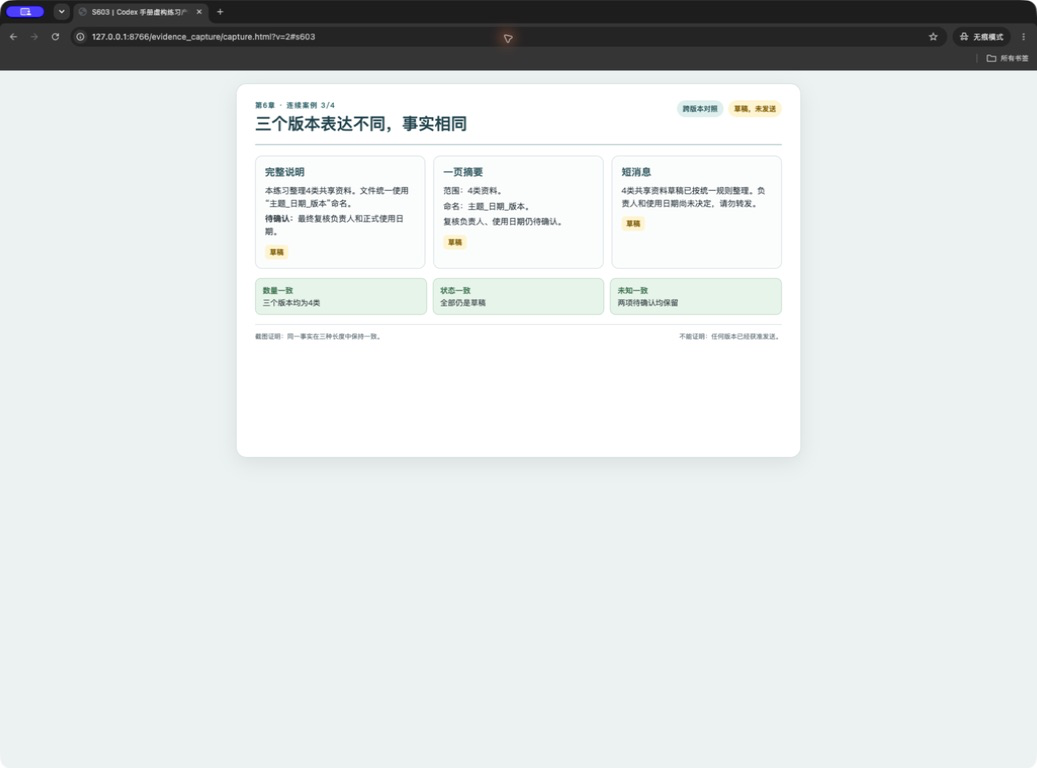
The same fact must keep the same information type in the long explanation, summary, and short message. In particular, a pending confirmation must not disappear from a short version, or readers may mistake it for a decision.
How to do it in Codex Desktop
In the workbook's consistency table, add columns for information type, wording in each version, and whether the type is retained. Ask Codex only to compare:
Read only the source and the three drafts in “chapter-06-personal-workbook.md”.
For each item, mark whether the facts, pending confirmations, and promises that cannot be made are stated consistently in all three versions.
Output only a difference table. Do not change any draft; stop if the information type changes.
What you should see
“Thursday 17:00” is the same in all three versions. The two pending confirmations remain labeled as pending, and promises that cannot be made are not rewritten as guarantees.
Common pitfalls
- Changing “pending confirmation” to “plan”. The warning sign is that the reader cannot tell who still needs to decide. Restore the original label.
- Putting “draft” only at the end of the long explanation. The warning sign is that the short message has no status. Keep draft status in all three versions.
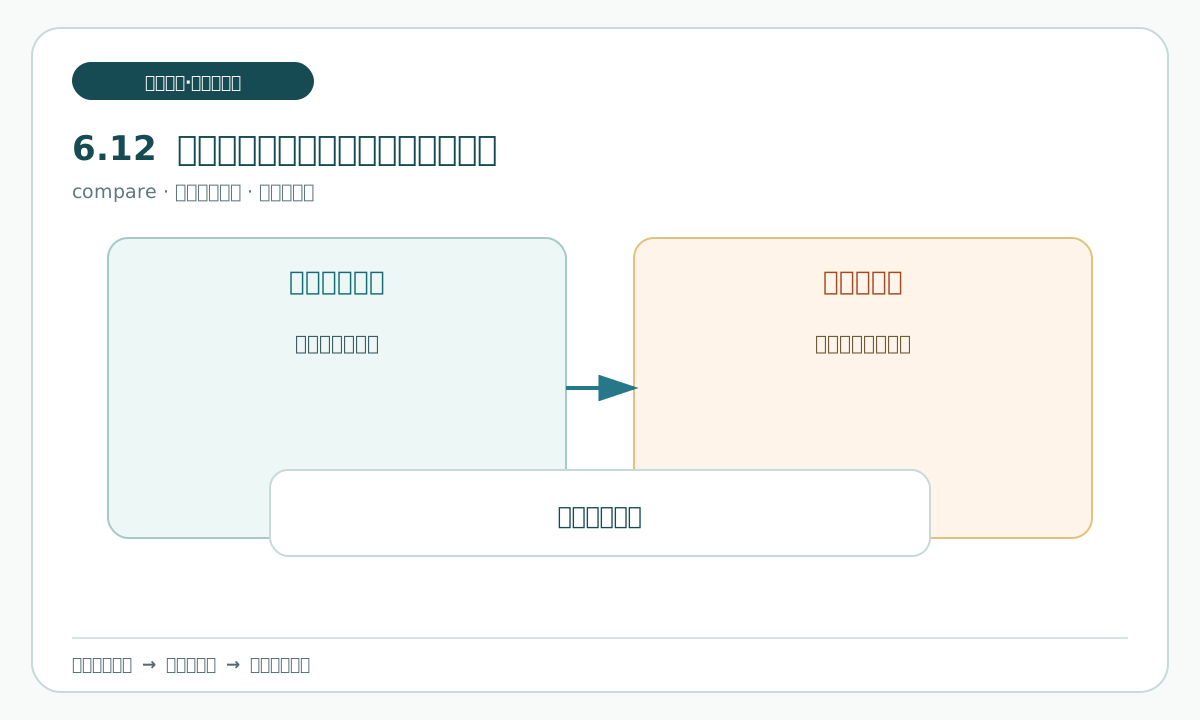
6.12 Prevent fact drift while adjusting tone and length
Why
Changing tone changes expression, not facts. The lead version can be complete, the team version concise, and the colleague version conversational, but all three must still come from one source.
How to do it in Codex Desktop
Write what may change and what may not change directly into the request:
Read only the three drafts and the factual source.
Allowed: adjust sentence length, paragraph order, and tone so the drafts suit a lead, a team, and a colleague.
Prohibited: change the four material names, Thursday 17:00, the two pending confirmations, lead role, applicable scope, or promises that cannot be made.
First list the sentences you plan to adjust and wait for human confirmation; do not overwrite the original drafts.
What you should see
You should first see an adjustment list rather than an overwritten draft. Each adjustment returns to a configuration requirement, while the fact fields remain unchanged.
Common pitfalls
- Deleting limits in pursuit of a “more positive” tone. The warning sign is wording such as “guarantee” or “certain”. Cancel the adjustment and retain the original draft.
- Using different cutoff formats in the three drafts in a way that changes meaning. Standardize them as “Thursday 17:00”.
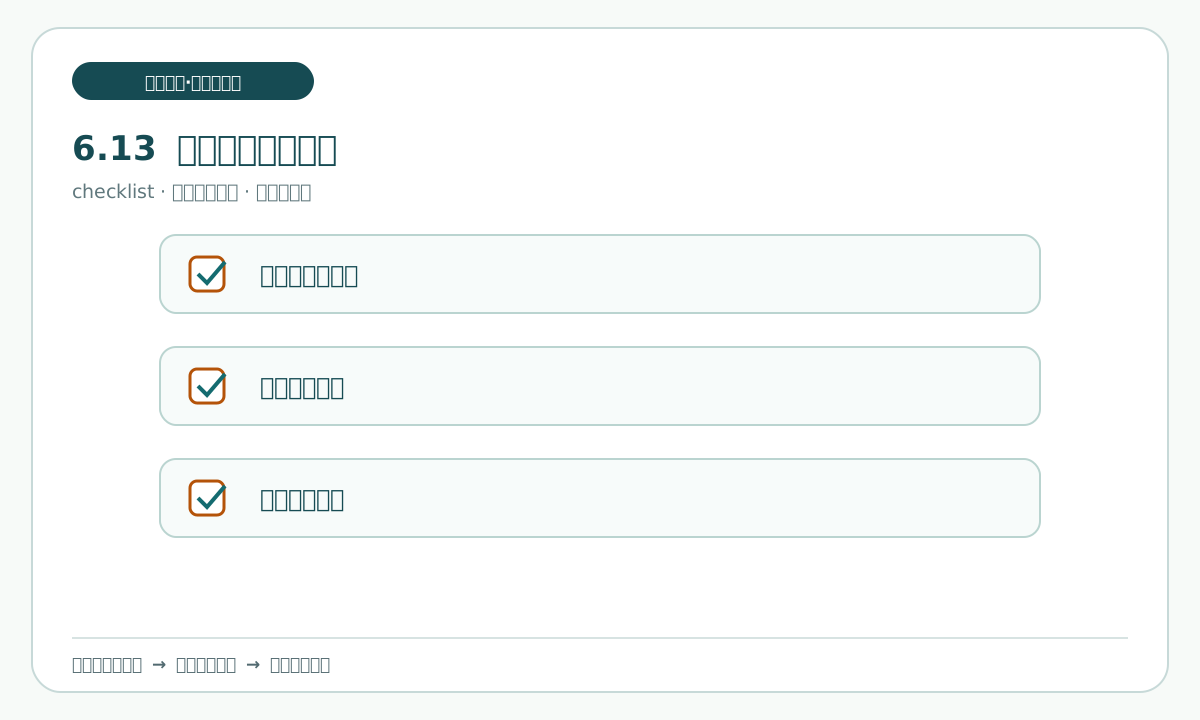
6.13 Run a cross-version consistency check
Why
A consistency check places the three versions together and compares the same fields. It does not decide whether the facts are true. It confirms only that the versions do not contradict one another.
How to do it in Codex Desktop
Use the workbook matrix and check at least these eight items: purpose, four materials, two pending confirmations, cutoff, lead role, applicable scope, promises that cannot be made, and status:
Read only the source, field mapping, and three drafts in “chapter-06-personal-workbook.md”.
Compare purpose, materials, pending confirmations, cutoff, lead role, scope, promises that cannot be made, and status cell by cell.
Output “same”, “needs human judgment”, or “conflict”, with the corresponding location. Do not modify files or add facts.
What you should see
The result identifies where each field appears in the three drafts. If there is a conflict, you can name the row and draft rather than receiving only a total score.
Common pitfalls
- Replacing an item-by-item check with “they look about the same”. The warning sign is no location record. Return to the mapping and compare each cell.
- Treating consistency as truth. The warning sign is “they all say the same thing, so it must be correct”. Keep the source marked as awaiting human acceptance.
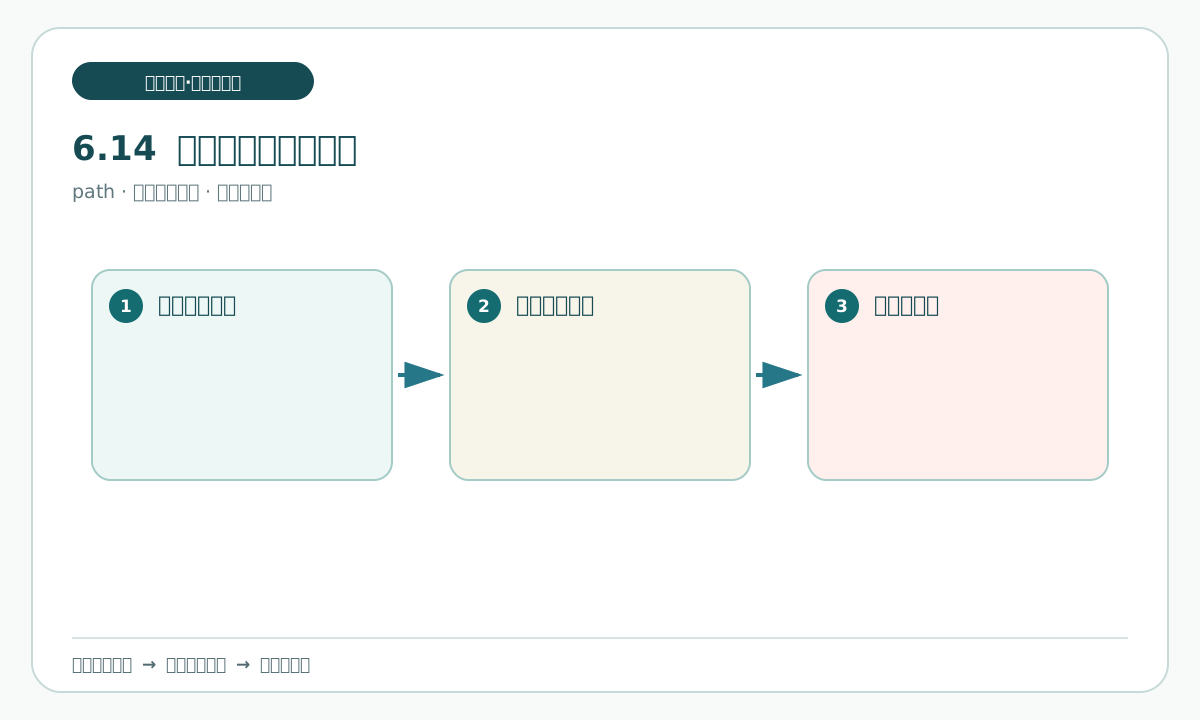
6.14 Open the drafts and preview them locally
Why
A file being generated does not mean it is easy for a person to read. In this chapter, preview means opening a file offline or copying it to a personal target folder to inspect layout and content. It does not mean that it has been sent or published.
How to do it in Codex Desktop
A person should open the three drafts first and check headings, paragraphs, tables, and line wrapping. If needed, copy a duplicate into a personal local practice location and compare the duplicate. Codex may provide only a preview checklist:
Read only the three drafts; do not modify them.
List what a person should check when opening or copying them to a target location for preview: headings, paragraphs, tables, cutoff, pending confirmations, draft status, and file names.
Do not claim that anything has been sent or published.
What you should see
A person can open the files, find all three versions, and read “Thursday 17:00”, “pending”, and “draft, do not send”. If a file cannot open or the content is truncated, stop delivery.
Common pitfalls
- Treating Codex's text reply as a preview. The warning sign is that nobody has opened the file. A person must open the personal copy.
- Treating a copy to a target location as sending. The warning sign is a real channel. Copy only to a local practice folder and do not send before the delivery gate.
6.15 Assemble a controlled delivery package
Why
A delivery package is a small set that tells the next person which files to inspect, what to inspect first, and what the current status is. This chapter's package remains a draft package, not a publication package.
How to do it in Codex Desktop
Create a dedicated folder and place the personal workbook, three drafts, field mapping, and checking table inside. Do not put original inputs, chat transcripts, or real account information into it. Ask Codex for a read-only directory list:
Read only the local practice folder and list each file name, purpose, version, and current status.
Do not move, delete, rename, or add files. Do not read outside the practice folder.
The list must distinguish the factual source, three drafts, checking table, and human records.
What you should see
The directory list is short and clear. It contains the factual source, three drafts, and human checking material. It contains no real sending receipt and no “published” file.
Common pitfalls
- Turning the delivery package into a backup of every material. The warning sign is unrelated original input in the package. Follow the scope, but do not delete sensitive material yourself; stop and give it to a person.
- Providing only a compressed file with no description. Keep clear names and an explanation rather than relying on hidden structure.